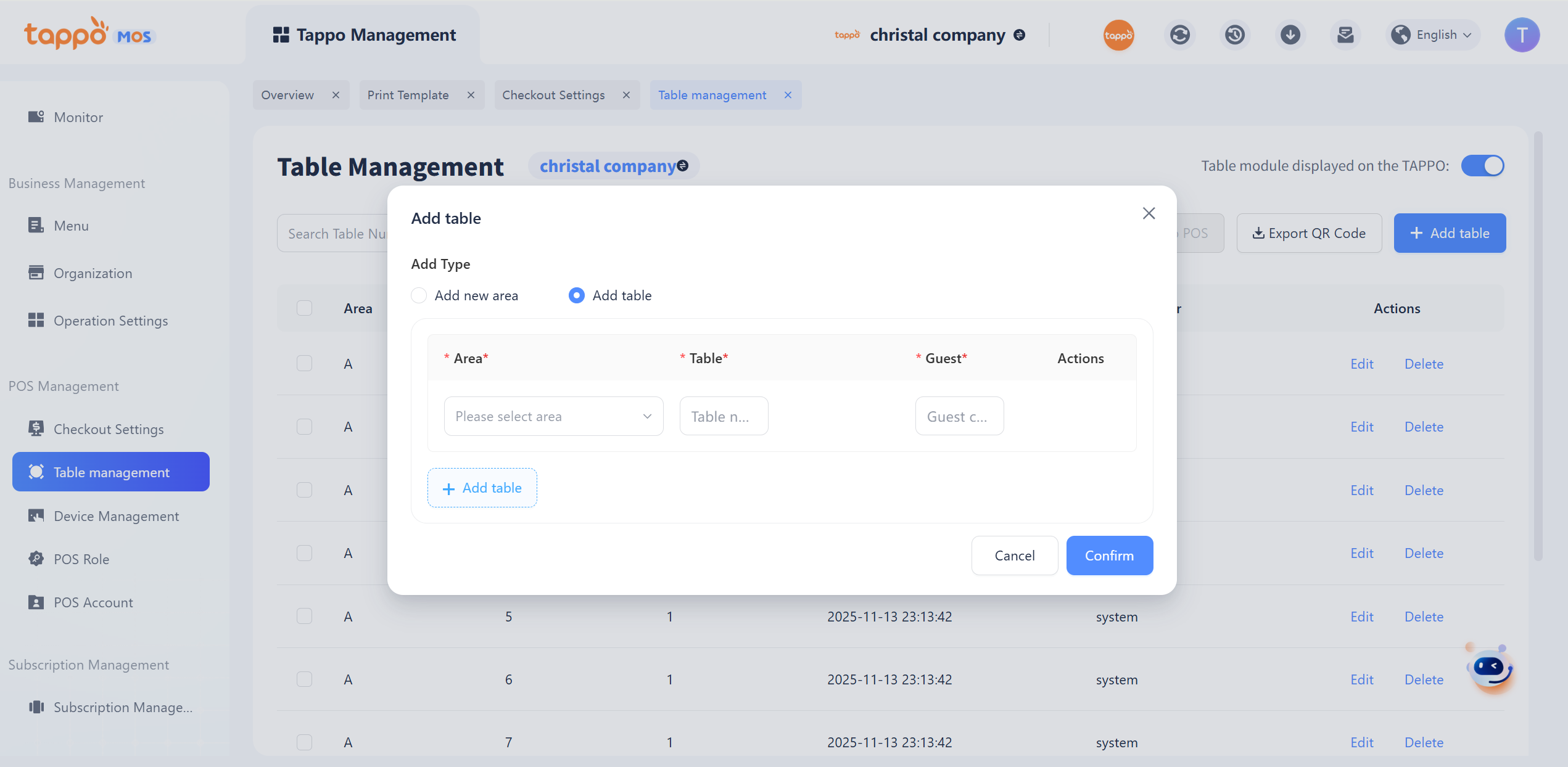
1. Display Table Module on Tappo: After enabling, the table will be displayed on the Tappo POS cash register terminal, which can be used for dine-in business scenarios where the store has table numbers. After disabling, the table will not be displayed on the Tappo POS cash register terminal.
2. Synchronize to POS: After adding/modifying/deleting table areas or adding/modifying/deleting tables, you need to manually click Synchronize to POS for the Tappo POS terminal to update and take effect.
3. Export QR Codes: Click to export the store’s table QR codes, which can be used to print fixed table number QR codes.
4. Add Table: Click [Add Table] to pop up the add table window, supporting the addition of table areas and table numbers.