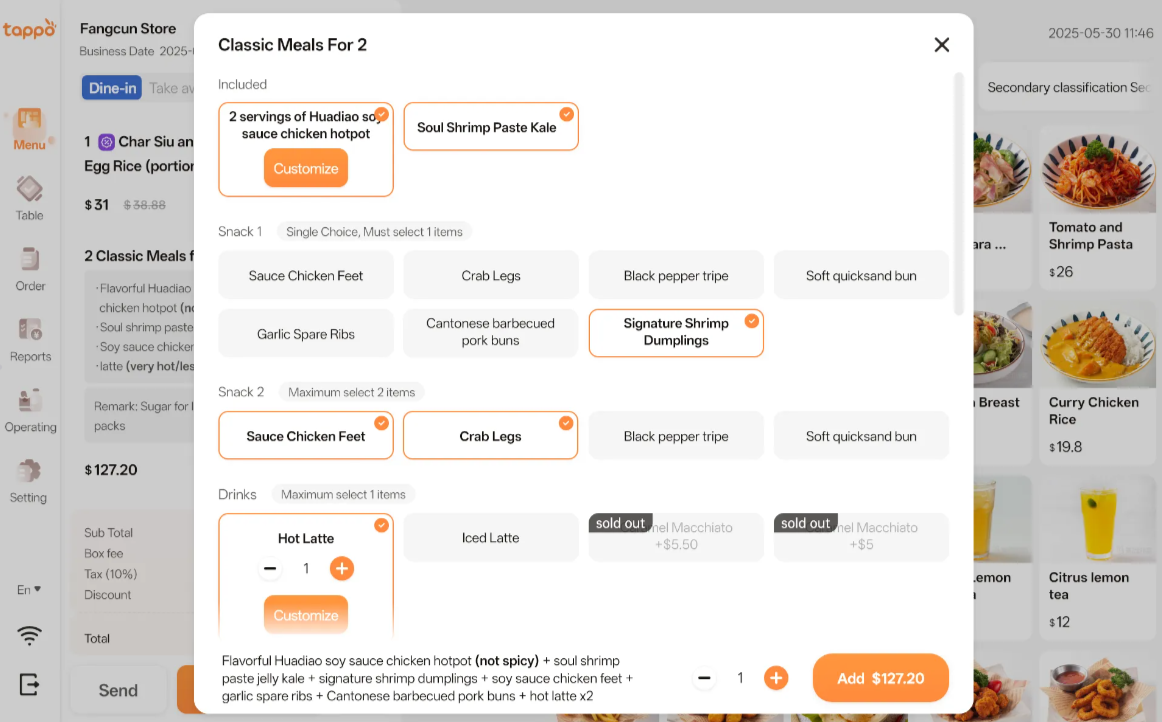


Dine-in - Non-Table Ordering
When the restaurant offers dine-in services and has no table numbers, non-table ordering can be used.
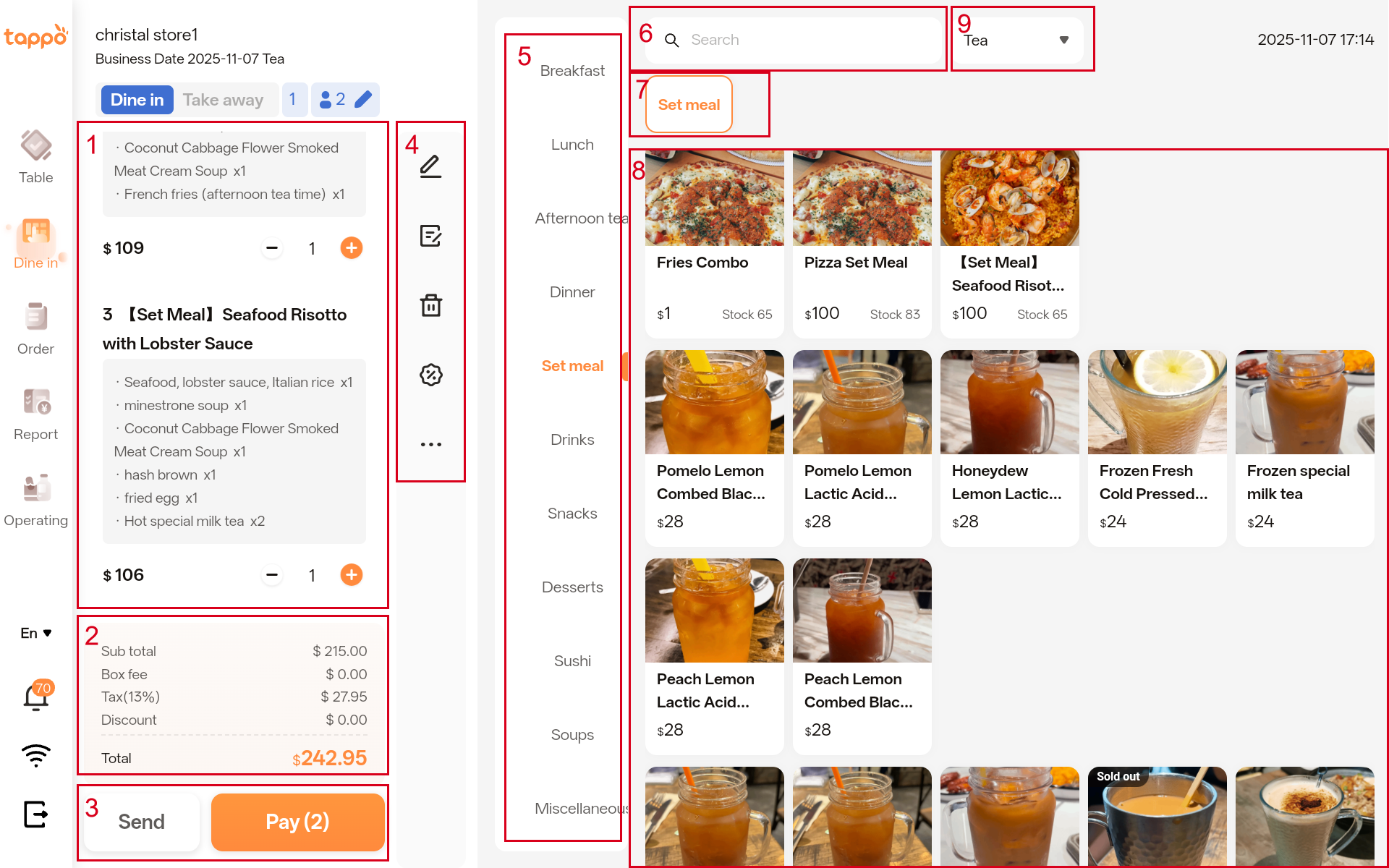
Shopping Cart Area
Dishes added from the [Dish List] on the right will be displayed in the shopping cart area.
1. Pricing Area
The pricing area will calculate the total amount of all dishes in the shopping cart.
2. Send/Pay
a. Send: For scenarios where ordering is done first and payment later, click [Send Order] to send the dishes to the kitchen for preparation first, then process the order payment later.
b. Pay: For scenarios where payment is required before dining or when settling the bill, click [Pay]. See details in Section VI: Payment.
3. Shopping Cart Operation Area
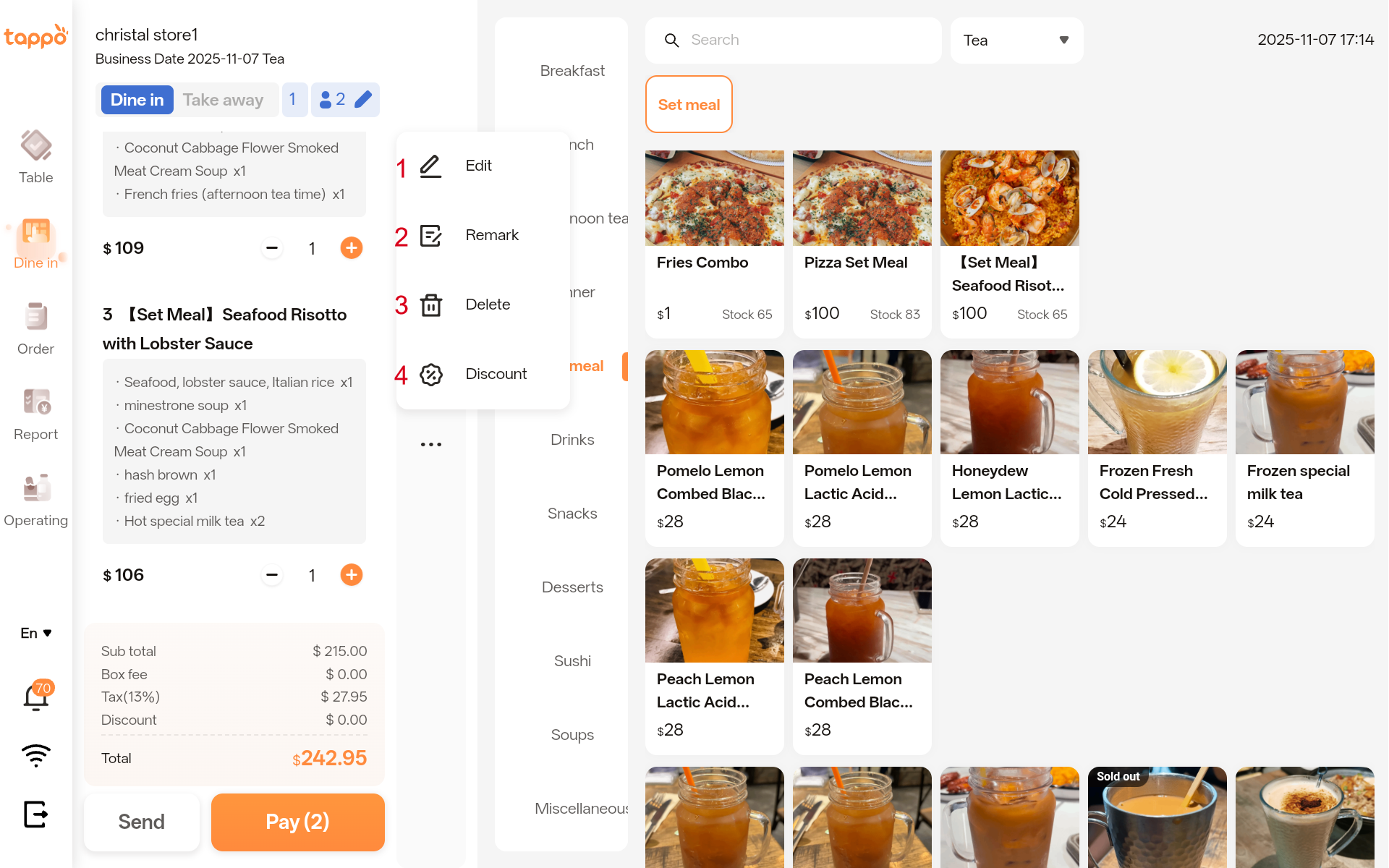
a. Edit: After selecting a dish in the shopping cart, you can re-modify the special requirements of the single dish or the contents of the set meal sub-dishes.
b. Remark: After selecting a dish in the shopping cart, you can add remark information for the dish.
c. Delete: Click the button to remove the dish from the shopping cart.
d. Discount: After selecting a dish in the shopping cart, you can apply a custom discount to the dish.
4. First-Level Menu Category
Configured in the Menu -> Menu Management function of MOS(商家管理後台).
5. Search Dishes
Supports fuzzy search for dishes by dish ID and dish name.
6. Second-Level Menu Category
Configured in the Menu -> Menu Management function of MOS(商家管理後台).
7. Dish List
Configured in the Menu -> Menu Management function of MOS(商家管理後台).
a. Item: Click the dish to add it directly to the shopping cart.
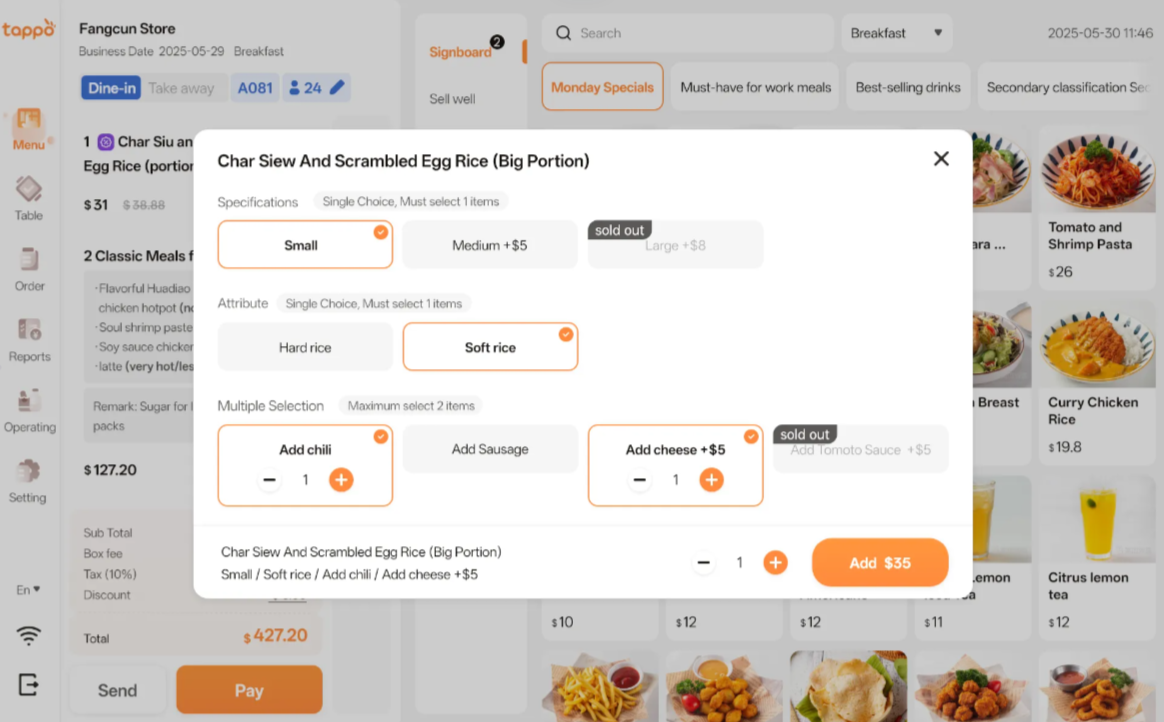
b. Item with Special Requirements: Click the dish, and a dish attribute pop-up window will appear according to the configuration in MOS, providing options for special requirements.
c. Combo: Click the dish, and a set meal sub-dish pop-up window will appear according to the configuration in MOS, providing options for sub-dish contents.[Image]