
- Home
- Help Guides
- TAPPO Management
- Brand Management
Brand Management
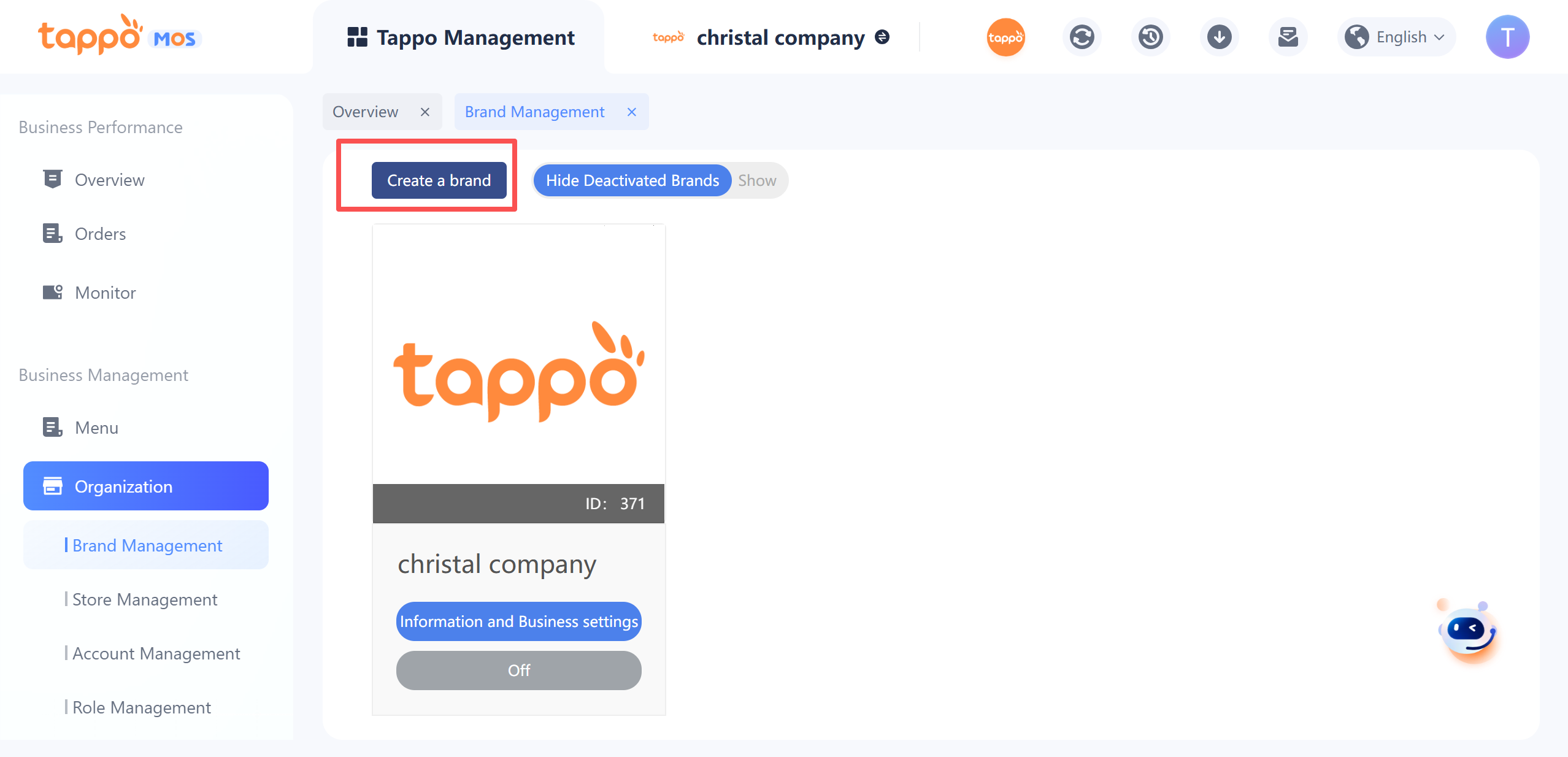
The system supports creating multiple brands, and multiple brand information is displayed in Brand Management. The brand deletion function is not supported, but brands can be deactivated and hidden.
Create Brand
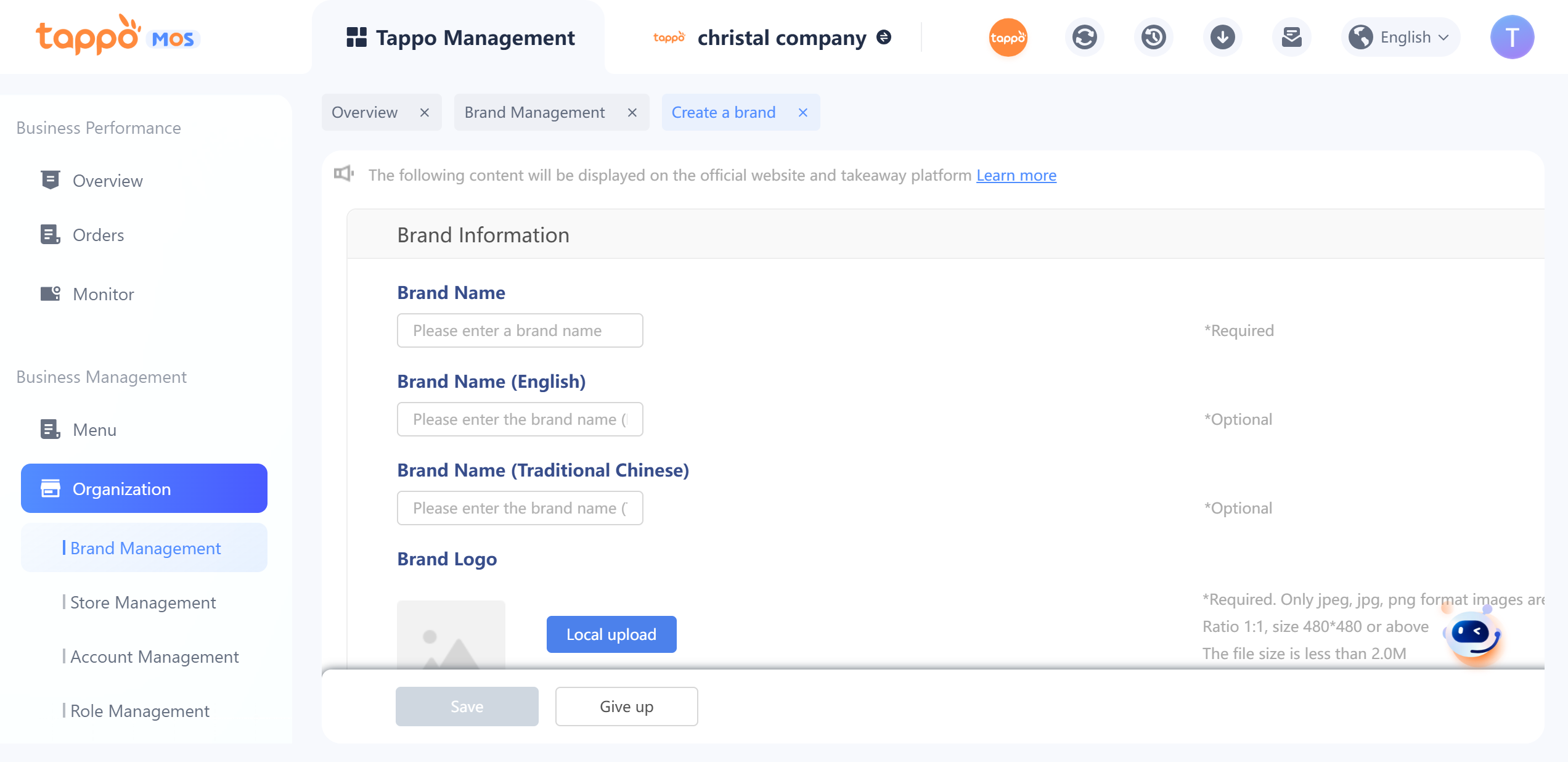
1. Brand Name: Edit the brand name to be displayed on self-operated channels. If connected to food delivery platforms, the brand information will also appear on the connected platforms. The brand name will be displayed in combination with the store name.
2. Brand Logo: The first uploaded brand logo will be displayed on self-operated channels and connected food delivery platforms. However, if the logo is changed later, Baidu Food Delivery will trigger a review due to the logo change. The store will be offline during the review and will be online only after the third-party review is completed and approved.
3. Customer Service Phone: The phone number for contacting the merchant on food delivery platforms. Limited to 8-digit/10-digit/11-digit phone numbers, or 3-digit/4-digit area code + 8-digit phone number.
4. Contact Email: If there are multiple emails, separate them with commas (,). They will be used to receive various notifications and reminders later.
5. Brand Announcement: Displayed on self-operated channels and the merchant information page of food delivery platforms.
6.Business Hours: You can set the unified business hours for your brand. Business hours support setting single or multiple time periods for different days of the week. The setting of business hours supports self-operated channels and connected food delivery platforms. The self-operated platform uniformly adopts the time of the current day of the week. When editing for the second time, you need to enter Third-Party Management – Food Delivery Platform Synchronization Management to synchronize store information and update the business hours to the connected food delivery platforms.
7. Takeaway/Dine-in Time: Used to set different times for platform orders and self-operated channel takeaway and dine-in takeaway. Currently not implemented in the standard version.
8. Launch Self-operated Channels: You can set the self-operated channels on which the brand needs to be launched. Check the box to launch on the corresponding self-operated channels.
9. Business Types: You can select whether the restaurant business supports takeaway, scheduled takeaway, takeaway pickup, and dine-in. Scheduled takeaway refers to supporting customers to schedule delivery time when placing orders; the setting of scheduled takeaway does not support connected food delivery platforms. The setting of takeaway pickup business only supports self-operated channels and is not supported by connected food delivery platforms. The dine-in business only supports customers to scan codes to place orders on the mobile web version when dining in and is not supported by connected food delivery platforms.
10. Takeaway Business Settings: When you select the business type as “Takeaway” or “Scheduled Takeaway”, you can set the minimum order amount, delivery fee, and delivery time. This setting will affect customers placing takeaway orders on self-operated channels and connected food delivery platforms. When editing for the second time, you need to enter Third-Party Management – Food Delivery Platform Synchronization Management to synchronize store information and update the settings to the connected food delivery platforms.
11. Dine-in Business Settings: When the business type is selected as “Dine-in”, you can set the dine-in pickup time, i.e., how long after a dine-in customer places an order they can pick up the food.
12. Scheduled Business Settings: When you select the business type as “Scheduled Takeaway”, you can set the earliest and latest scheduled delivery times for customers. This setting does not support connected food delivery platforms.
13. Takeaway Pickup Business Settings: When you select the business type as “Takeaway Pickup”, you can set whether to support instant pickup and scheduled pickup. For instant pickup, you can set how long after placing an order the customer can pick up the food. For scheduled pickup, you can set the earliest and latest scheduled pickup times for customers. This setting does not support connected food delivery platforms.
14. Payment Methods: Supports online payment and offline payment. Online payment supports Alipay and WeChat. This setting only affects the payment methods of self-operated channels and is not synchronized to food delivery platforms.
15. Online Payment Collection Account: When you select the payment method as “Online Payment”, you can set whether Tappo collects the payment on your behalf or the merchant’s account collects the payment. If you select Tappo to collect the payment on your behalf, we will settle with you monthly in accordance with the agreement. For details, please consult us at support@gotappo.com. If you select the merchant’s account to collect the payment, you need to provide relevant information for binding, and Tappo will contact you to handle it.
16. Invoice Type: Can set manual invoices and machine-printed invoices.
17. Invoice System: Optional and single-choice. Can set the invoicing system supported by the store.
18. Tableware Provision: Optional. Used to prompt the provision of tableware on self-operated channels.
19. Large Order Interception Settings: When an order exceeds the large order amount or quantity, it will be intercepted to the Order Management – Large Order Management module for processing after confirmation or other handling. For detailed functions of large orders, refer to “Large Order Management”.
20. Large Order Cancellation Notification Settings: When large order cancellation notification settings are enabled, you can set specific large orders (exceeding the amount or quantity requiring notification) and specific notification methods (email or SMS) in “Large Order Cancellation Notification” to remind the store of large order cancellations.
21. Store Proximity Matching Settings: Disabled by default. If enabled, for orders from self-operated channels, after the order is generated, the system will match the eligible store closest to the delivery address (including the store where the order was placed) and send the generated order to the matched store for acceptance.
22. Dish Commission Settings: Disabled by default, applicable to intermediary merchants. After enabling, when generating an order, the system will read the dish commission in the menu and calculate the agreed order amount. Note: Dish commission = the dish price of the intermediary merchant on the platform – the dish price of the store, i.e., the intermediary’s profit. Agreed order amount = the original price of all dishes in the order – the commission of all dishes, i.e., the intermediary’s cost for this order.
23. Packaging Fee Settings: 0 yuan per order by default, used for Ele.me Retail’s packaging fee. When synchronizing store information to the Ele.me Retail platform, this field will be synchronized. When placing an order from Ele.me Retail, the dish’s packaging fee is this packaging fee.
24. Order Activity Dish Price Settings: Default is “Record by Activity Price”. If recorded by activity price, the activity price of the activity dish will be directly recorded in the order list without the original price. If recorded by original price and the discount amount is recorded in the discount information, the original price of the activity dish will be recorded in the order list, and the activity discount amount will be recorded in the discount information.
25. Order Acceptance Method: Can select Tappo POS client order acceptance or third-party system order acceptance. If third-party system order acceptance is selected, please apply for connection to the third-party system in “Third-Party Management”.
26. Supported Systems: If it is a customized kitchen system, select Support Kitchen System.
27. Offline Automatic Order Acceptance: If enabled, the system will automatically confirm orders, and only accepted orders will be received by the Tappo POS client and third-party system.
28. Order Status Settings: Set the order status flow mode and time. Currently, the following order statuses are available. The order status flow has different setting times for different business types:
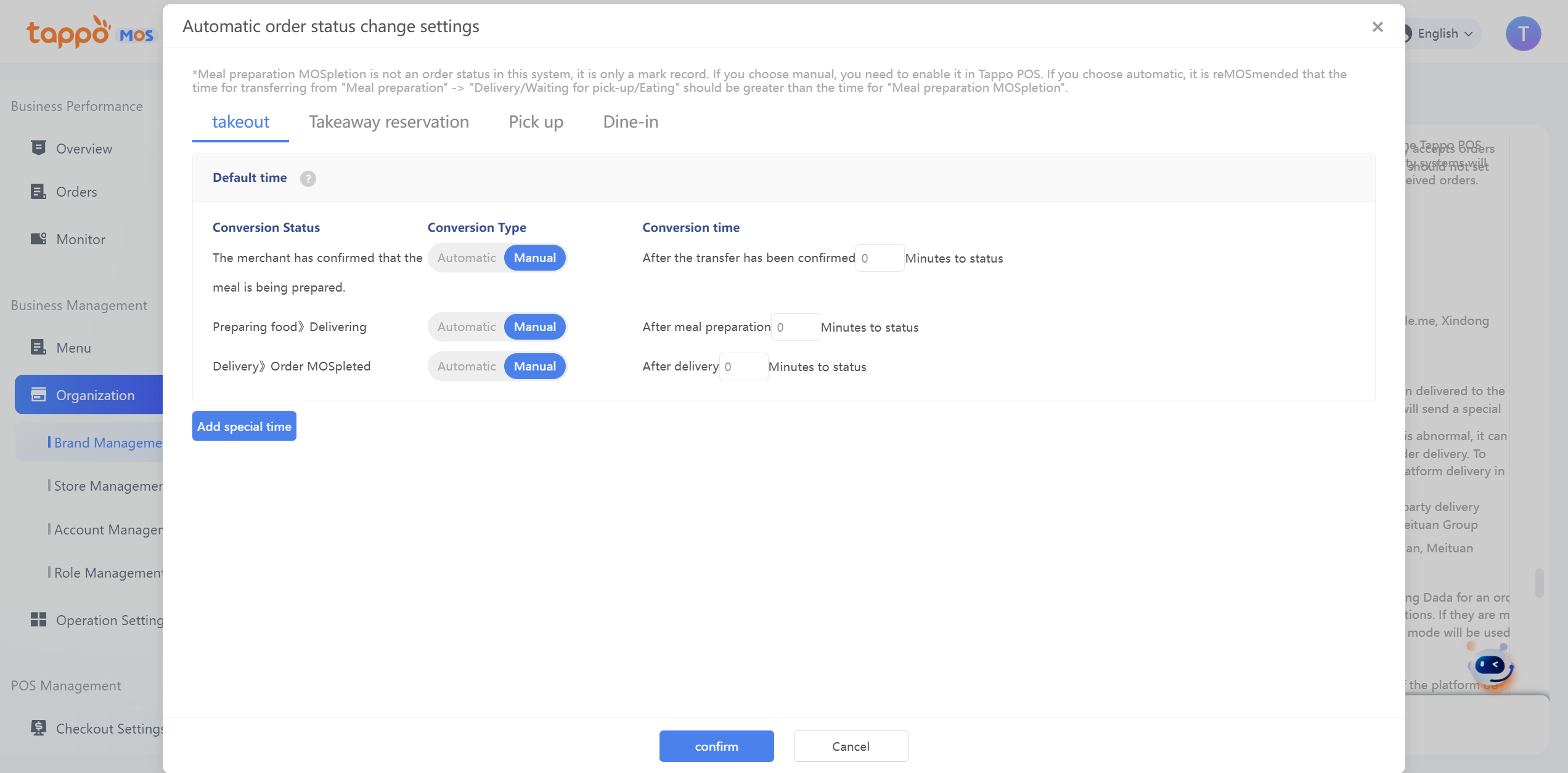
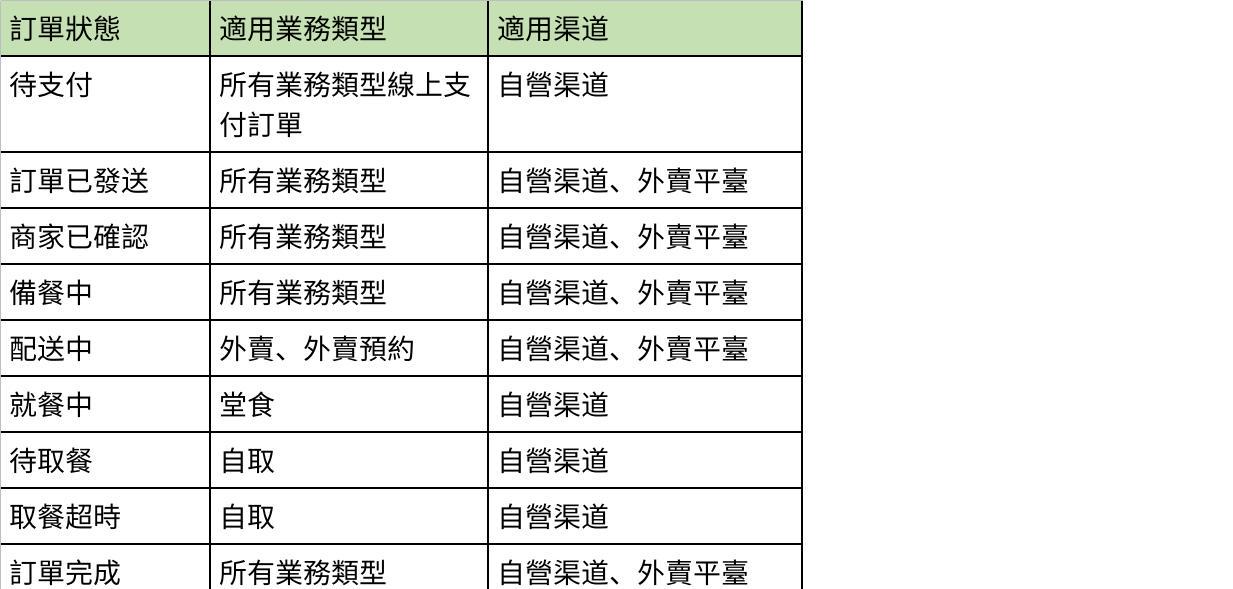
点击图片可查看完整电子表格
29. Pickup Number Identifier: Can add identifiers before pickup numbers for different businesses (dine-in/takeaway pickup), such as: Dine-in 1, Takeaway Pickup 2. Changes to this setting will take effect the next day.
30. Pickup Number Rule Configuration: Can set the generation rule of pickup numbers for takeaway pickup/dine-in of the brand. Pickup numbers for dine-in and takeaway pickup will be calculated separately. After changing the pickup rule, the changed rule will be implemented the next day.
a. Enable: When enabled, you need to set the display range of pickup numbers. When generating takeaway pickup/dine-in orders, natural numbers within the range will be assigned as pickup numbers. The assignment starts from the minimum range value every day. When the maximum range value is reached, the pickup number of the next order will cycle back to the minimum range value. Pickup numbers will be reset the next day.
b. Disable: When disabled, pickup numbers will start from 1 as natural numbers every day for corresponding takeaway pickup/dine-in orders and will not be reset during the day. Pickup numbers will be reset the next day.
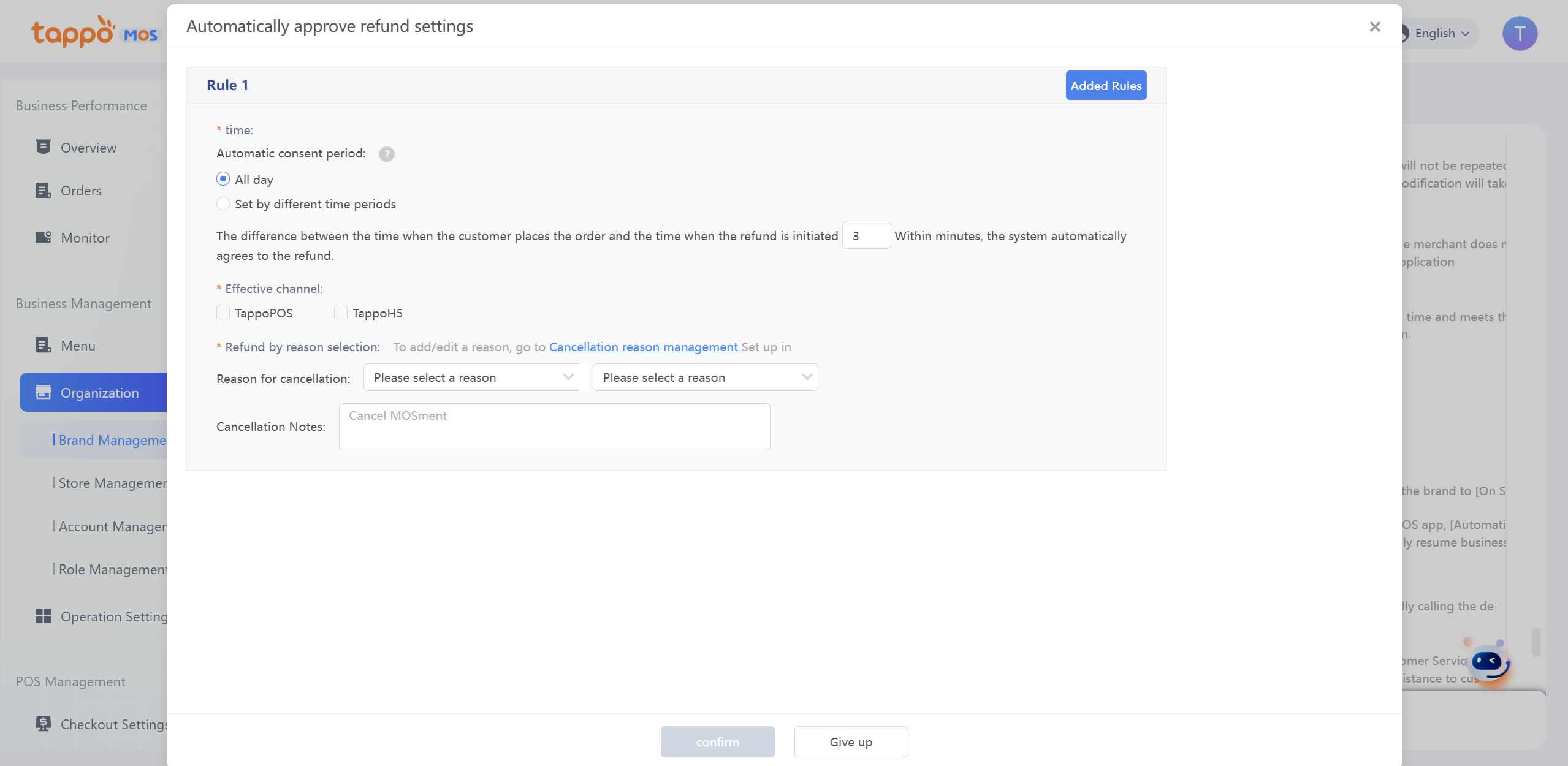
31. Automatic Refusal of Refunds After Timeout Settings: Can set that if the merchant does not take any action within X minutes after the customer applies for a refund or cancels the order, the system will automatically refuse the first application.
a. Effective Channels: Select the channels where the setting takes effect. For channels not selected, the system will not automatically refuse refund applications or order cancellation applications.
b. Refund Application Types: Can specify automatic refusal for full refunds or partial refunds.
c. Reasons for Automatic Refusal of Refunds and Order Cancellations: The filled-in refusal reasons will be automatically applied to the client when the system automatically refuses.
32. Automatic Restoration of Dishes for Sale: If enabled, you can set the time when the store’s out-of-stock dishes or special requirements are automatically restored for sale every day.
Suspend/Activate Brand
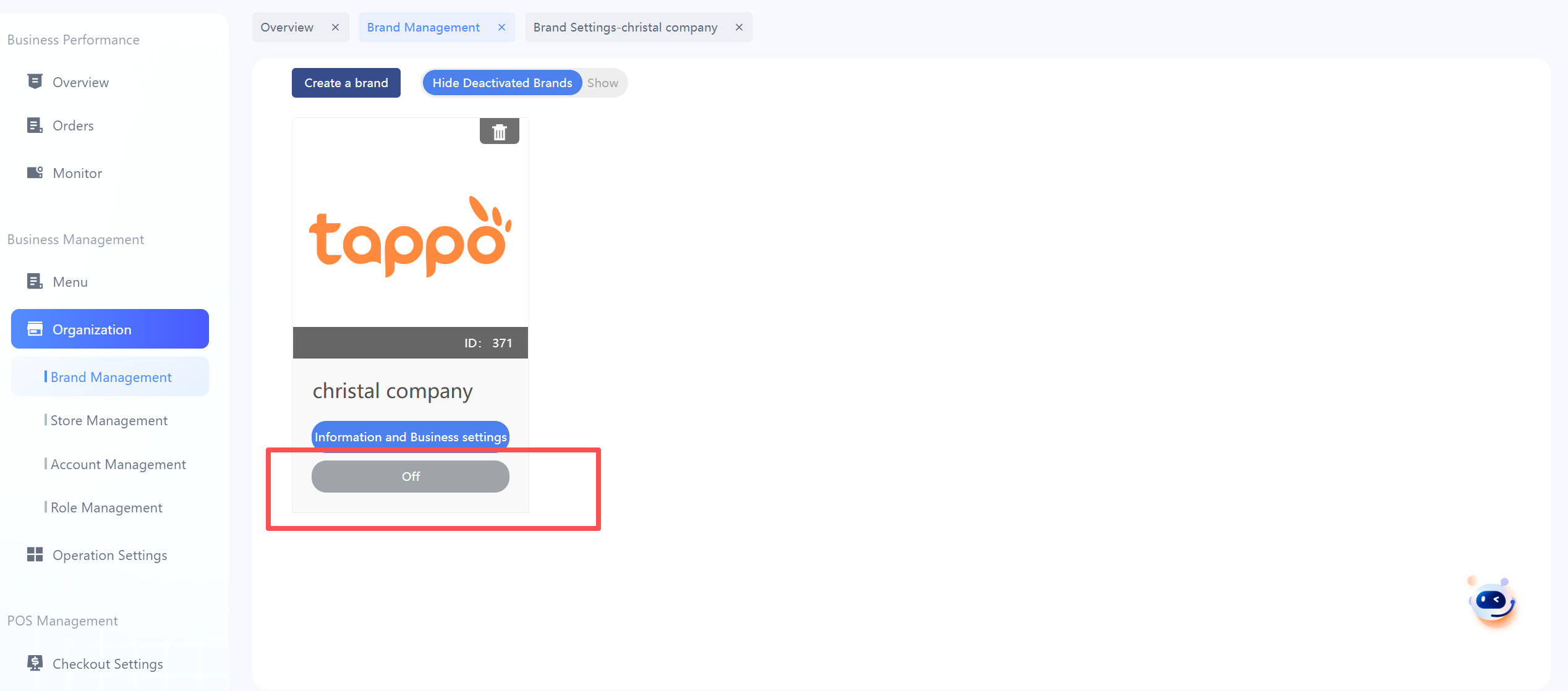
In the brand list or brand information viewing page, you can set the brand to be suspended/activated. After suspending the brand, customers will not be able to place orders through any channels, and the system will no longer count data for the brand’s stores, but data entry operations will not be affected.