

- Home
- Help Guides
- TAPPO Management
- Tax Management
Tax Management
Path: Tappo Management -> Operation Settings -> Tax Management
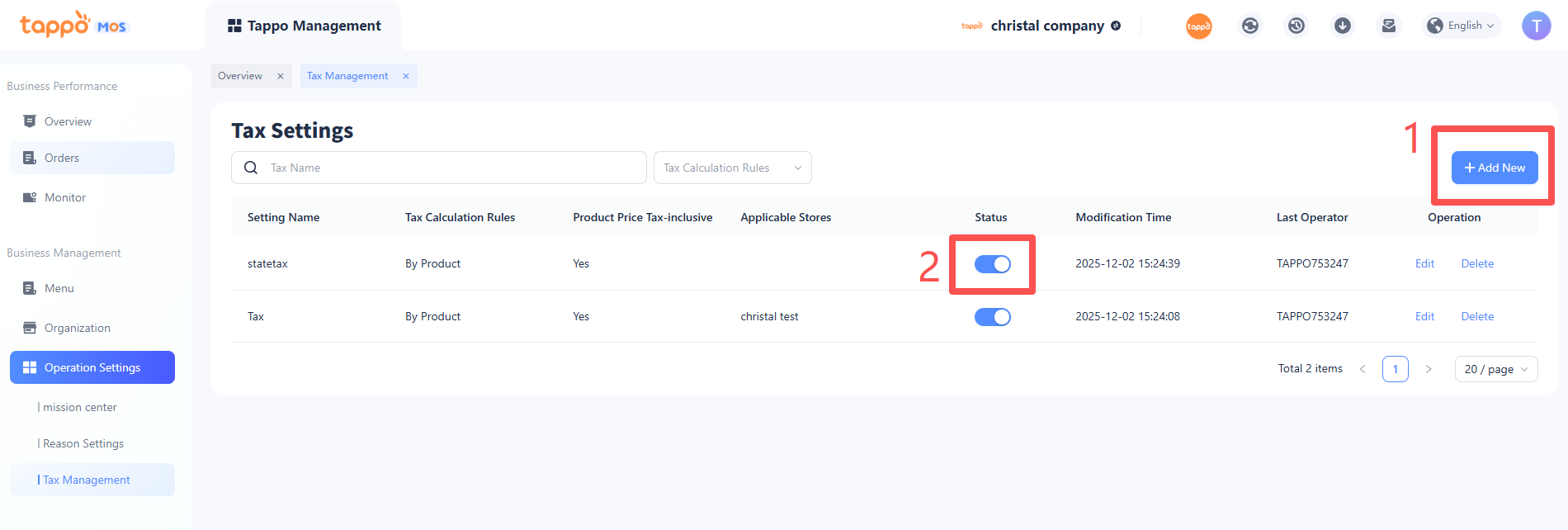
1. Add Tax Setting: Click [Add New] to jump to the tax setting creation page. To add a new tax setting, you need to fill in information such as device name, tax calculation rule, whether the commodity selling price includes tax, tax decimal handling rule, associated stores, and tax rate.
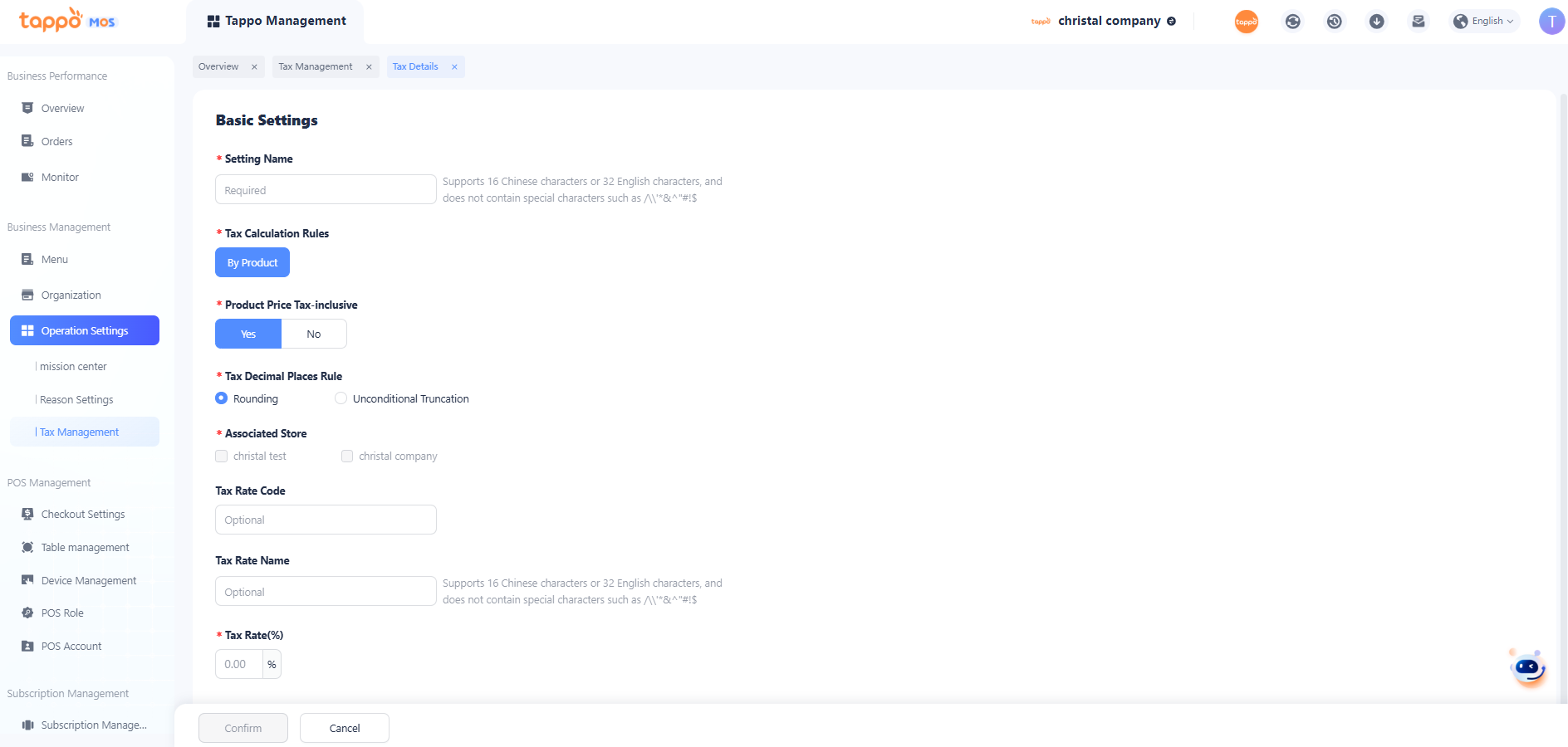
| Configuration Item | Description |
|---|---|
|
Setting Name |
Required |
|
Tax Calculation Rules |
[By Commodity] is selected by default |
|
Product Price Tax-inclusive |
Select [Yes]: Commodities do not require additional taxation based on the tax rate.Select [No]: Commodities require additional taxation based on the tax rate |
|
Tax Decimal Places Rule |
Rules for handling decimals beyond two places:
[Rounding]: For example, a tax amount of 5.187 becomes 5.19 after rounding.
[Unconditional Truncation]: For example, a tax amount of 5.187 becomes 5.18 after truncation. |
|
Associated Store |
Select the stores where this tax rule applies |
|
Tax Rate Code |
Optional |
|
Tax Rate Name |
Optional |
|
Tax Rate(%) |
Required |