

Generic selectors
Exact matches only
Search in title
Search in content
Post Type Selectors

Inventory Management

Meals Inventory

Tappo Management Inventory screenshot 1 in Tappo
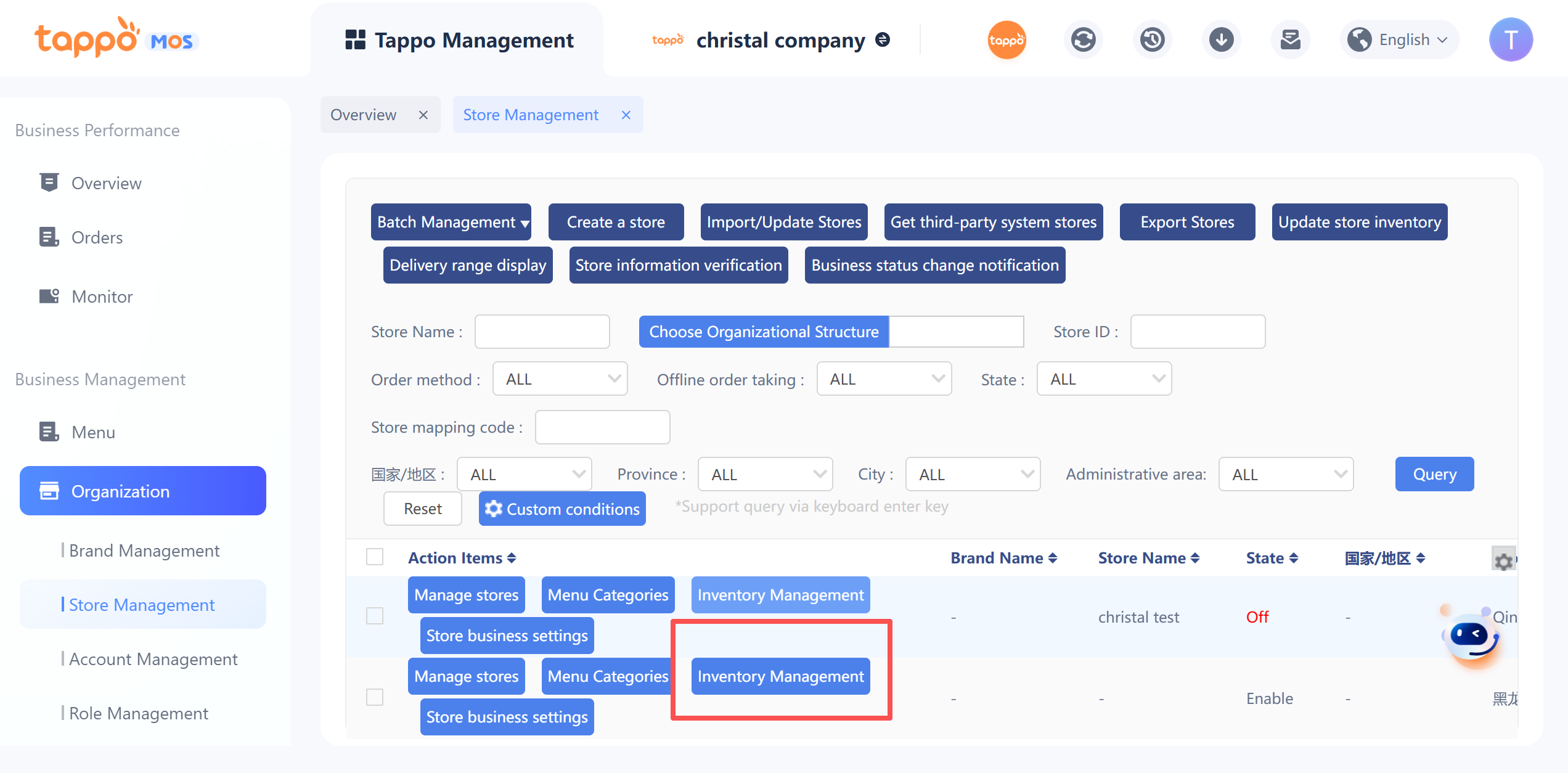
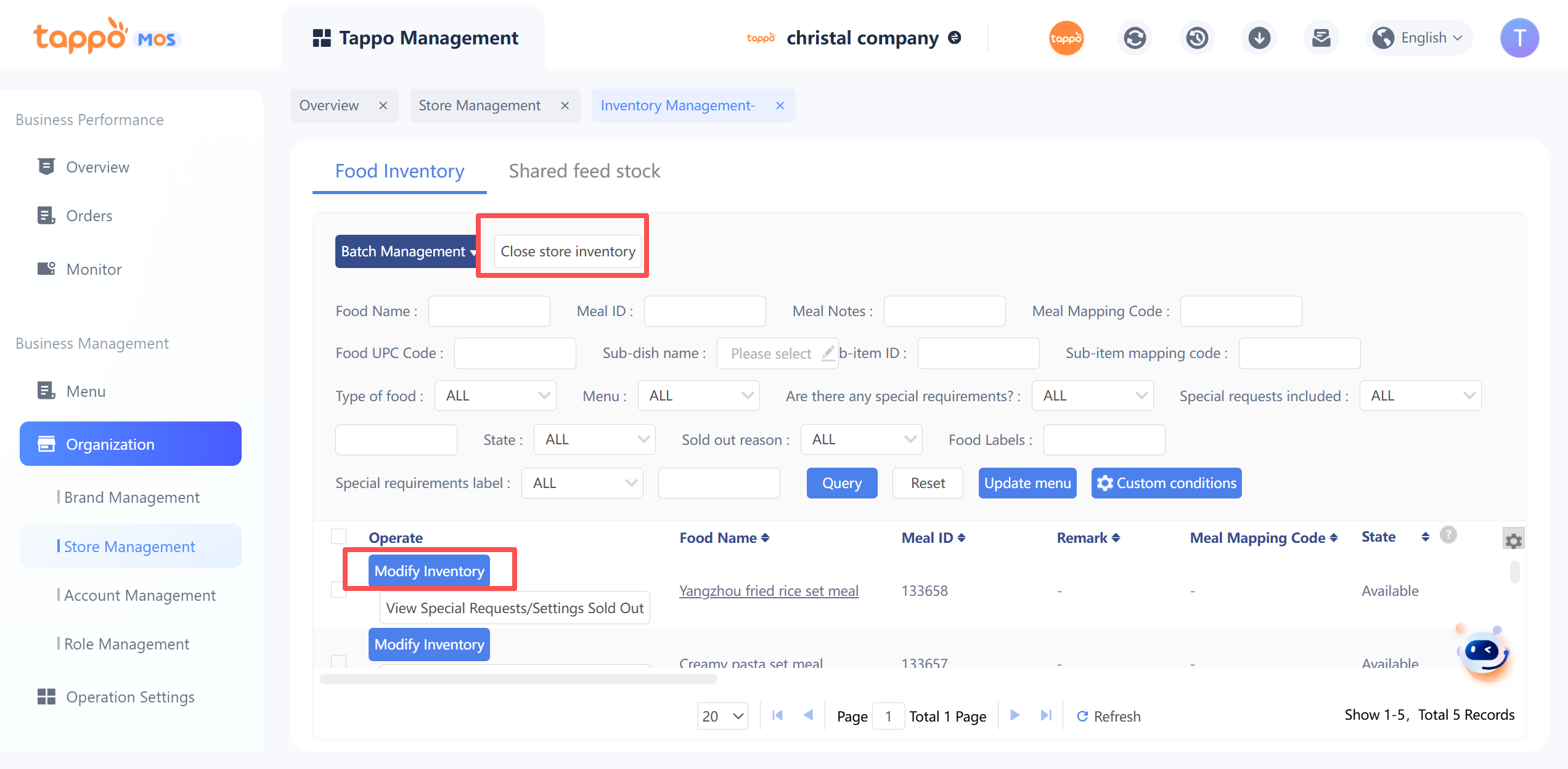
Click Store [Inventory Management]in the store list to open the dish inventory management page. Inventory management includes store inventory activation/deactivation, dish inventory settings, and out-of-stock settings. It also supports batch setting of dishes to be out of stock/available for sale and synchronization to third parties. The list displays the store’s dish information by default. The store can operate on dishes that need to set inventory or be out of stock.
Tappo Management Inventory screenshot 2 in Tappo
1. Disable Store Inventory
a. Select the corresponding store and open inventory management.
b. Click Disable Store Inventory.
c. In the state of disabled store inventory, the dish inventory cannot be modified again in store inventory management, and the corresponding inventory information fields and operation buttons for modifying dish inventory will be hidden in the list.
d. Stores with disabled inventory will not automatically deduct inventory when generating orders, and will not trigger automatic out-of-stock of dishes when inventory is reduced to zero.
e. Dishes with disabled inventory can still be manually set to be out of stock and synchronized to third parties.
f. Disabling the inventory function will also disable the inventory function of dish special requirements and shared toppings.
2. Modify Dish Inventory
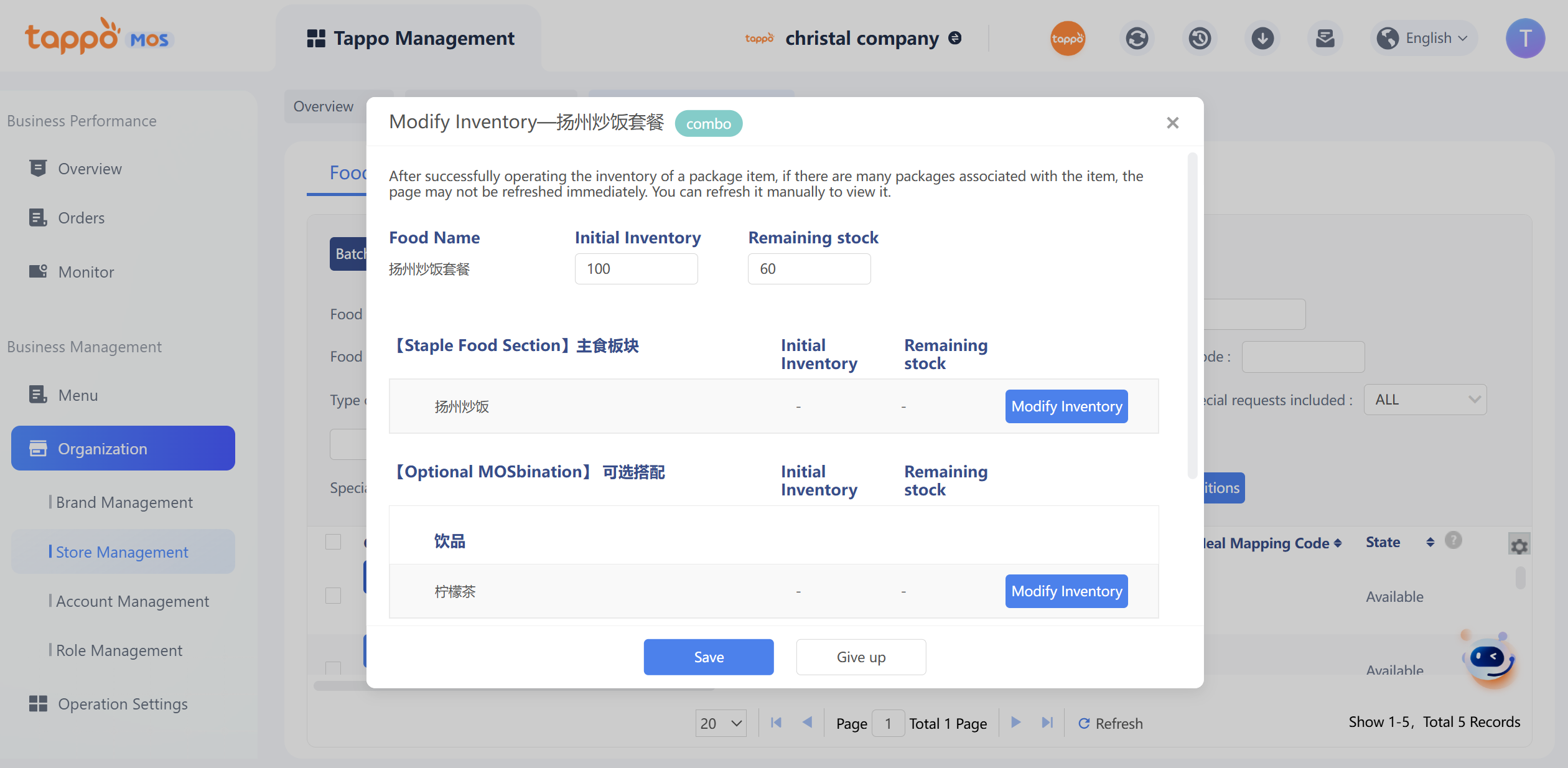
a. Find the dish and click [Modify Inventory].
b. Set the initial inventory and remaining inventory of the dish.
Tappo Management Inventory screenshot 3 in Tappo
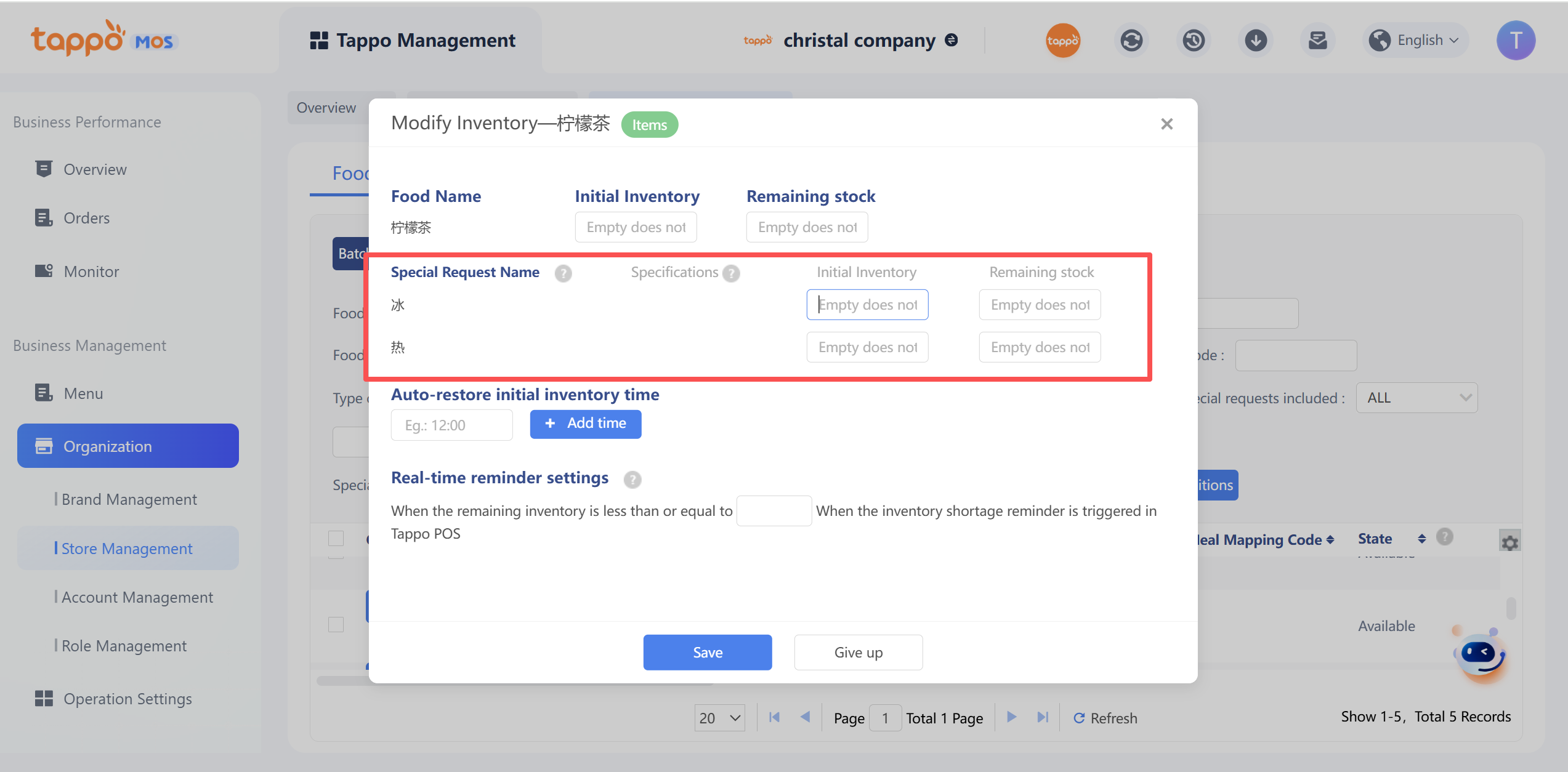
c. Set the initial inventory and remaining inventory of dish special requirements (optional; if not set, the dish inventory will be used for synchronization; otherwise, the corresponding specification inventory will be used for synchronization). Special requirements referencing shared toppings are prohibited from editing.
Tappo Management Inventory screenshot 4 in Tappo
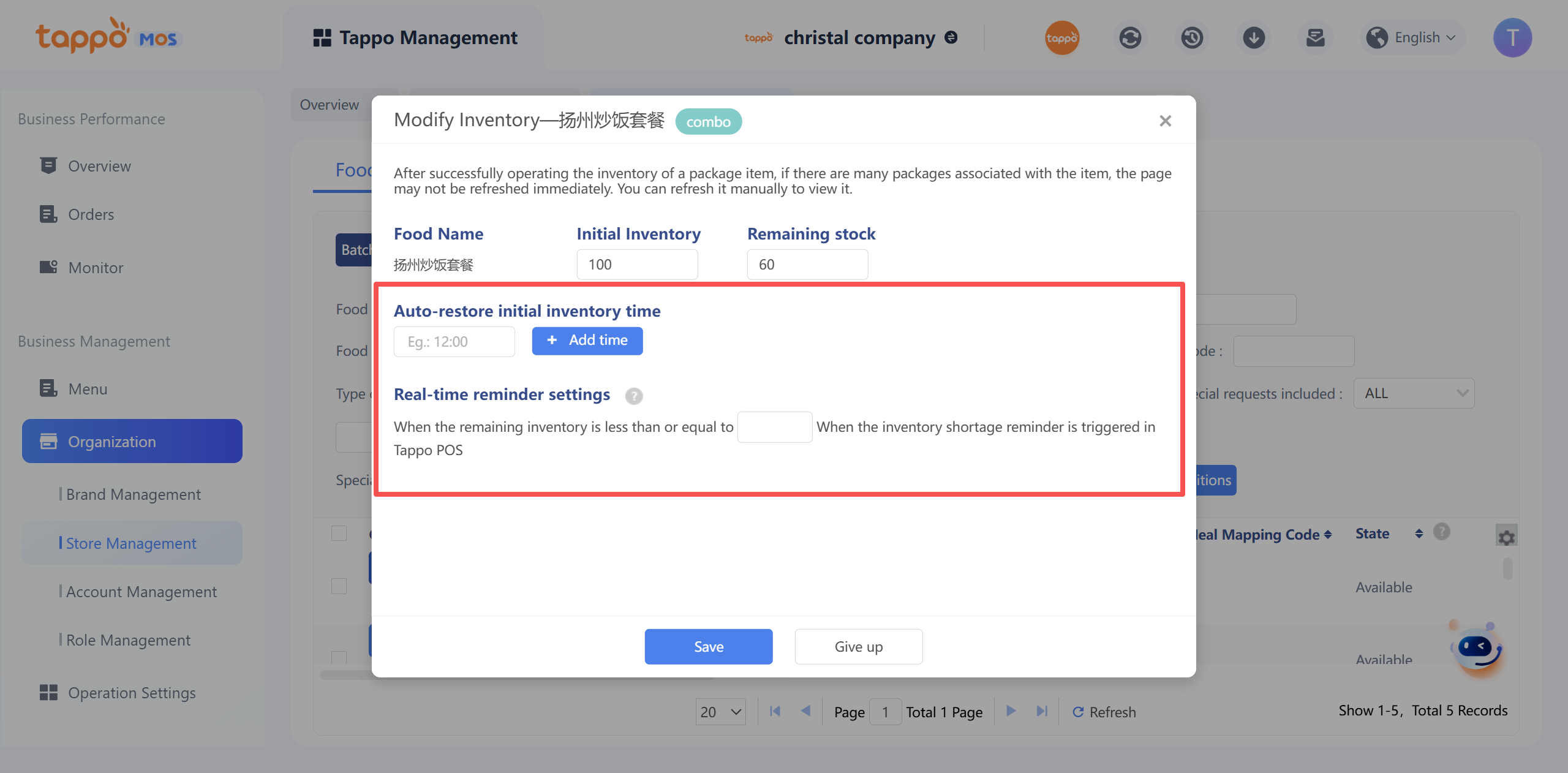
d. Set the initial inventory and remaining inventory of dish special requirements (optional; if not set, the dish inventory will be used for synchronization; otherwise, the corresponding specification inventory will be used for synchronization). Special requirements referencing shared toppings are prohibited from editing.
Tappo Management Inventory screenshot 5 in Tappo
e. Click Save to take effect. Once the dish inventory is reduced to 0, it will be automatically out of stock, and the dish out-of-stock status will be automatically synchronized to food delivery platforms.
3. Set Dish Out of Stock
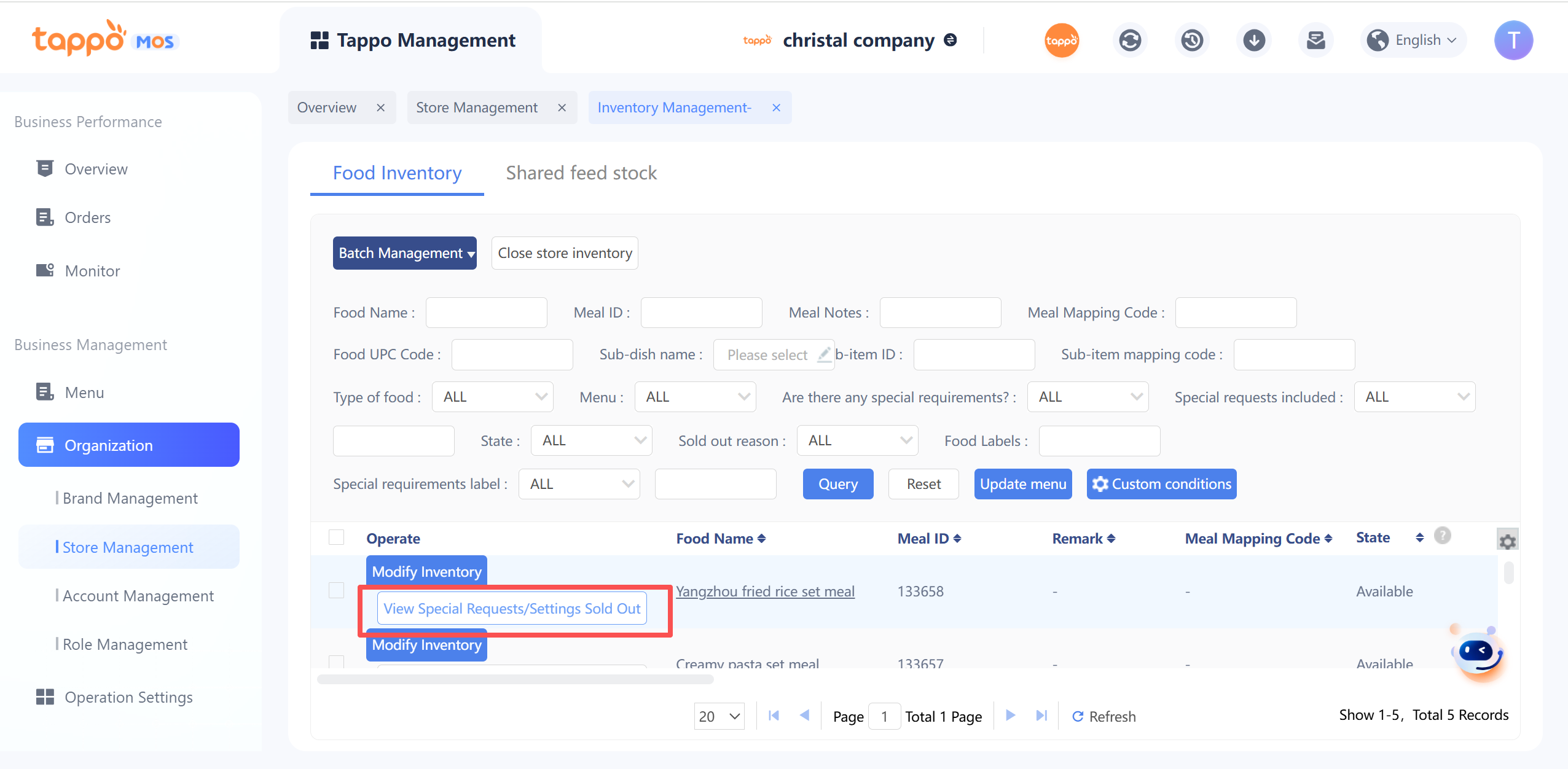
Tappo Management Inventory screenshot 6 in Tappo
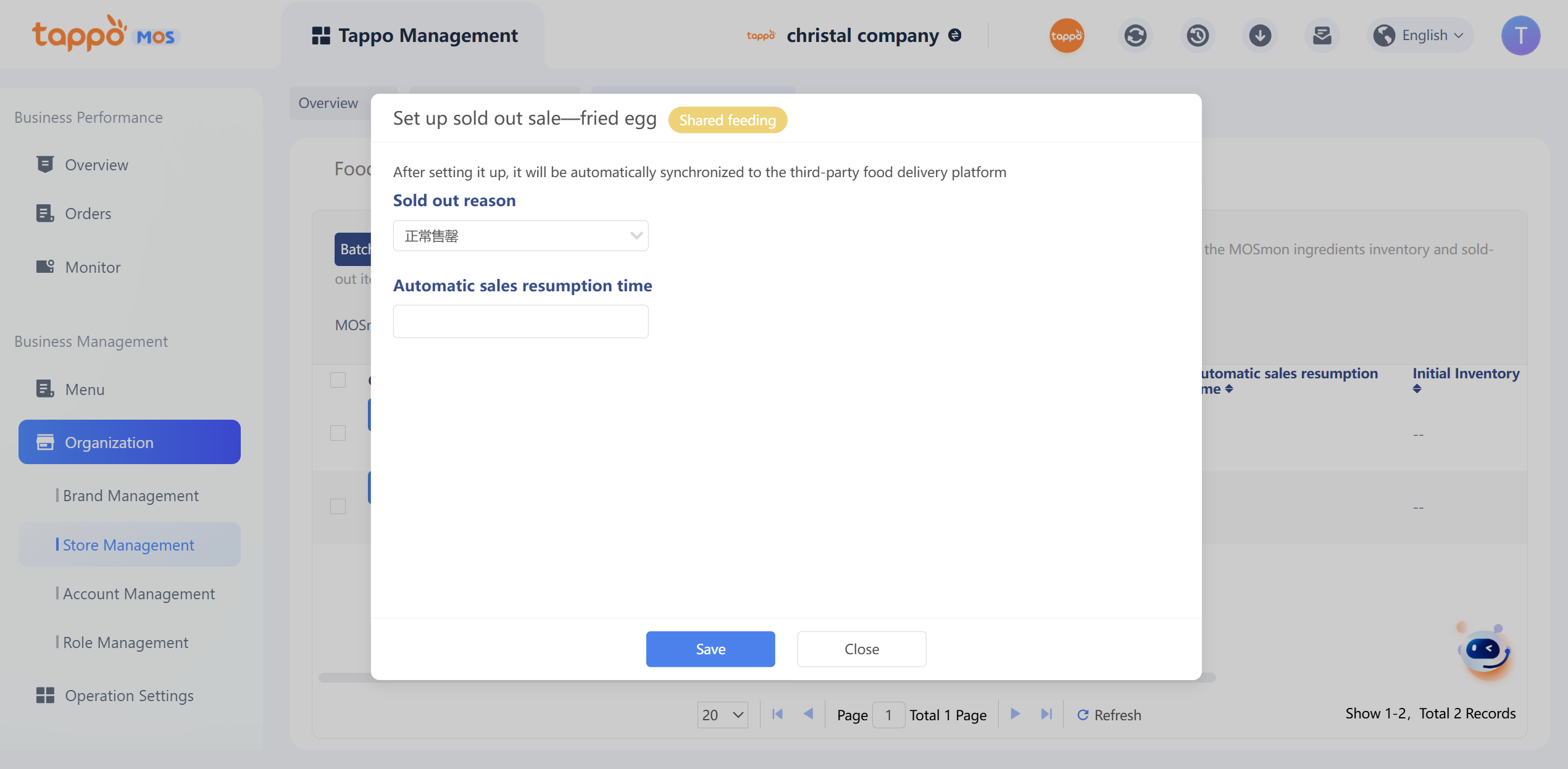
a. Find the dish and click [Set Out of Stock].
b. Select the out-of-stock reason. Note: The out-of-stock reason is fixed and cannot be customized
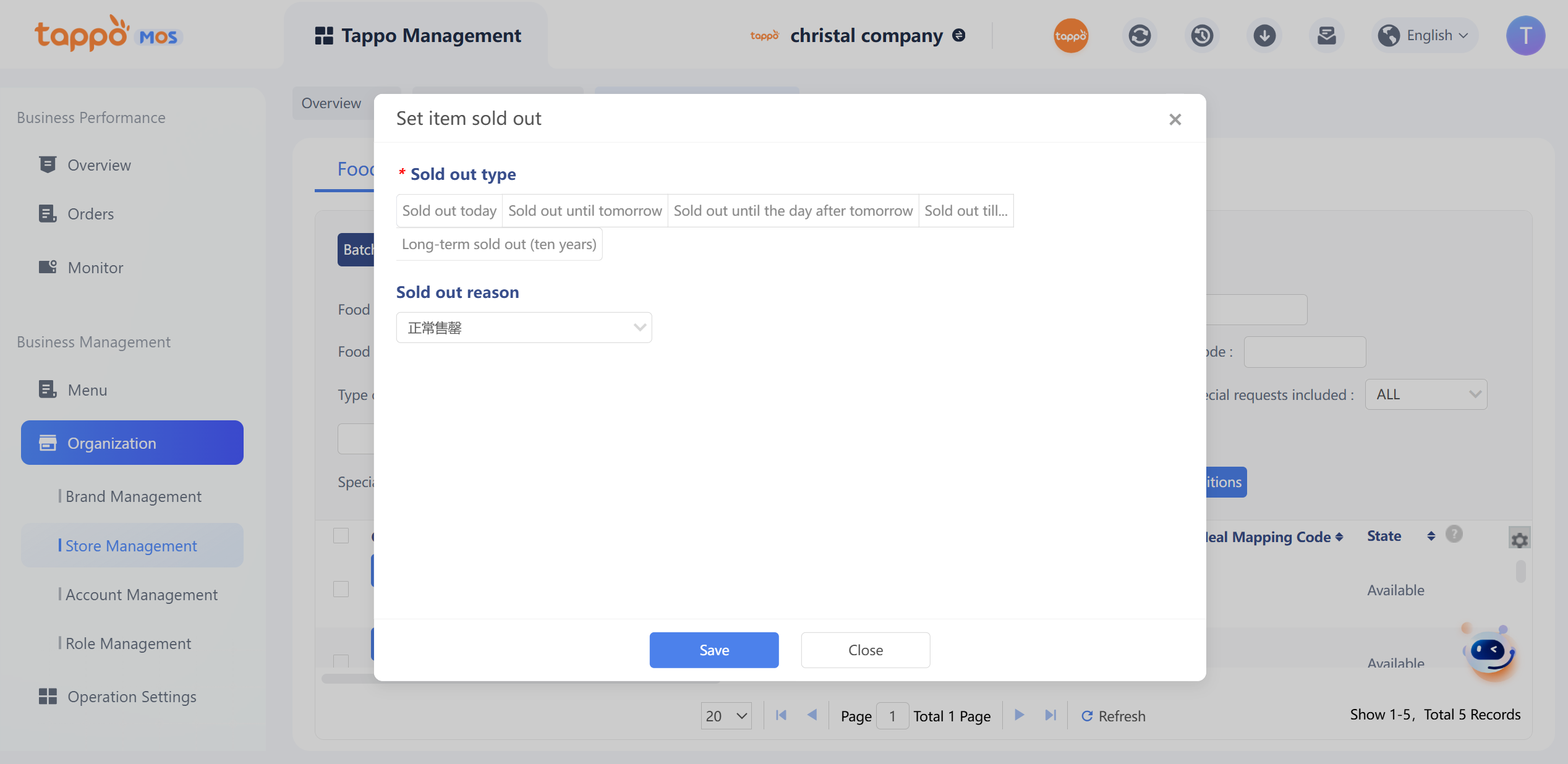
Tappo Management Inventory screenshot 7 in Tappo
a. Set the automatic restoration time for sale. If not set, it will not be automatically restored for sale.
b. Click Save to take effect immediately and automatically synchronize to food delivery platforms.
4. Set Dish Available for Sale
a. Select the out-of-stock dish and click [Set Available for Sale].
5. Set Special Requirements Out of Stock
Only single dishes with special requirements can have their special requirements (specifications/attributes/multi-select) set to be out of stock.
a. Query single dishes with special requirements and click [Set Out of Stock].
b. The pop-up window displays the special requirements of the single dish. Click [Set Out of Stock], select the corresponding out-of-stock reason, and set the automatic restoration time for sale. After secondary confirmation, the special requirements will be out of stock and automatically synchronized to third parties (only specifications). If the special requirements reference shared toppings, they cannot be edited.
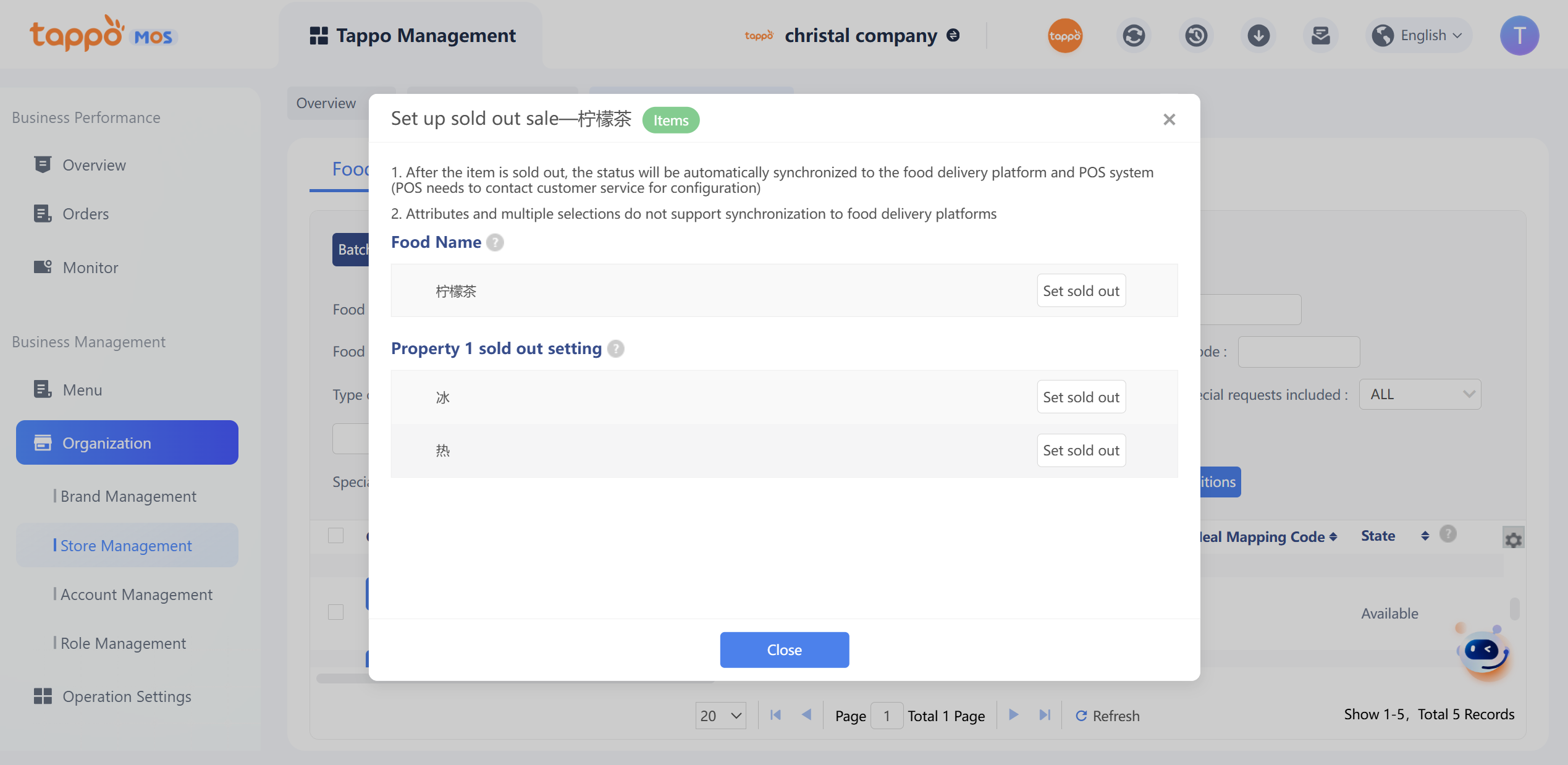
Tappo Management Inventory screenshot 8 in Tappo
c. The out-of-stock reason and restoration time for sale of specific special requirements can be viewed.
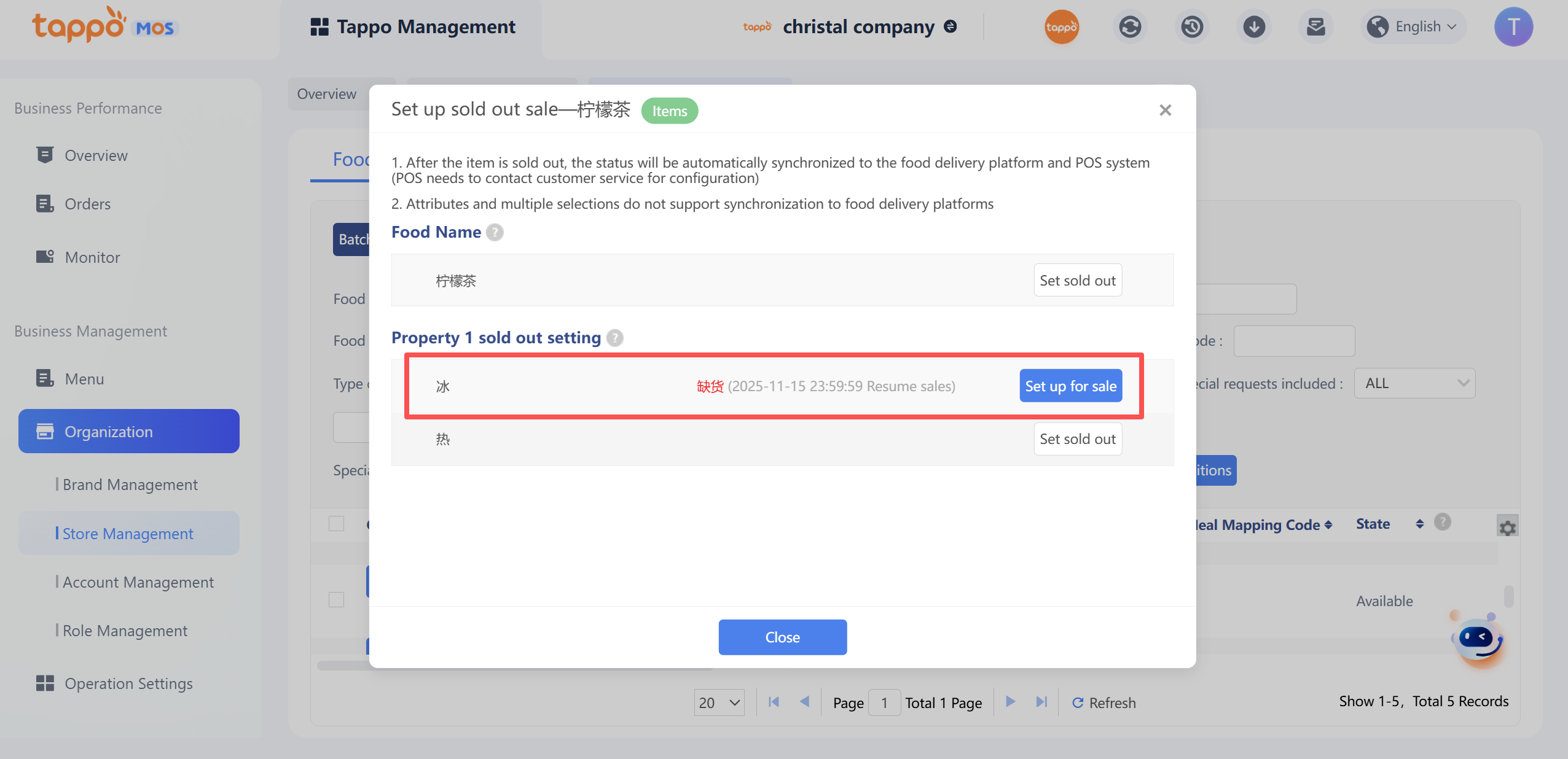
Tappo Management Inventory screenshot 9 in Tappo
6. Batch Set Special Requirements Out of Stock
If you need to set the same special requirements in multiple dishes to be out of stock (available for sale), follow the steps below:
Tappo Management Inventory screenshot 10 in Tappo
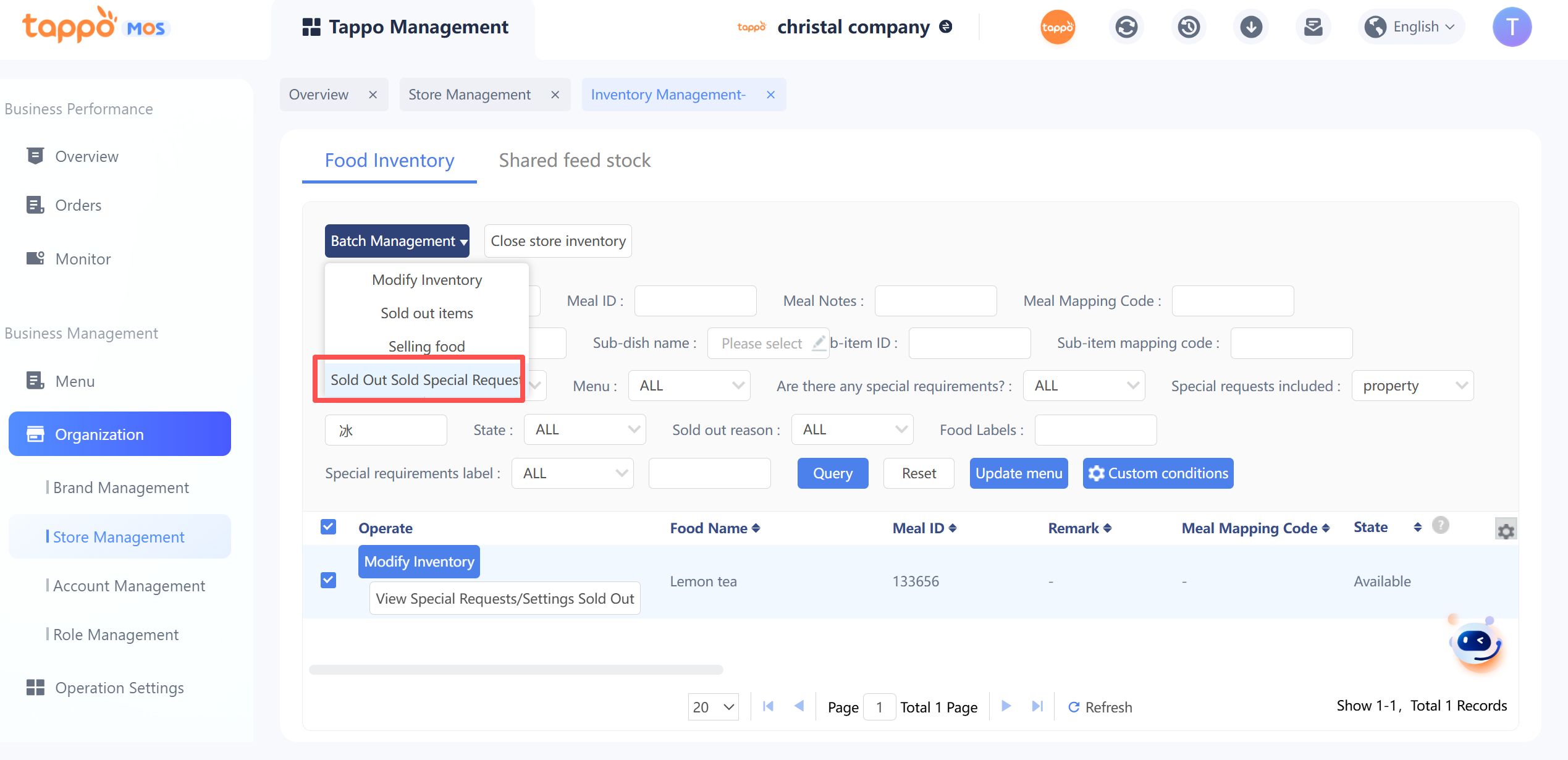
a. Enter the special requirements in the query criteria to query all single dishes containing the specification.
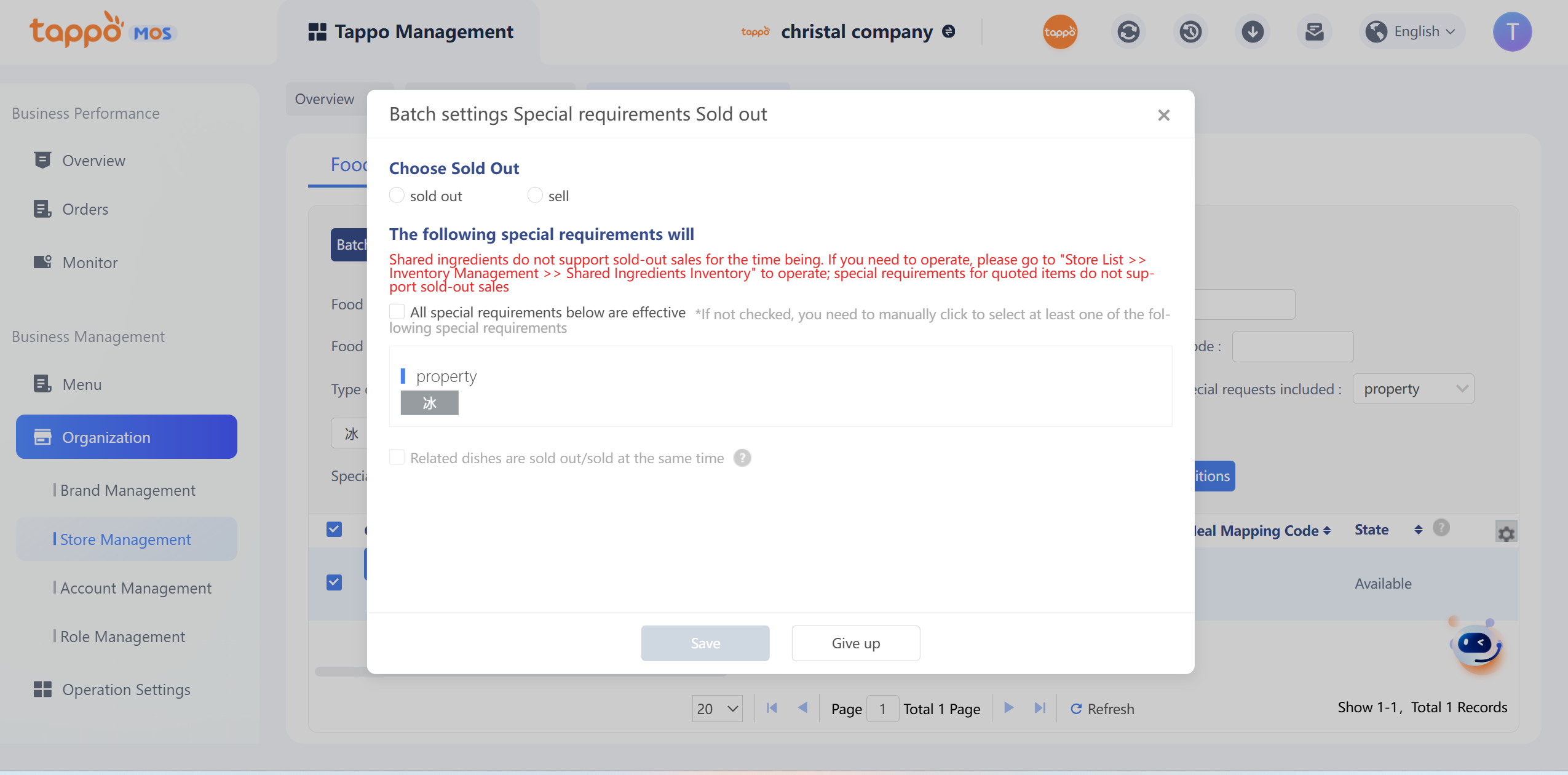
b. Select all queried dishes, click [Batch Management] – [Set Special Requirements Out of Stock/Available for Sale], and a confirmation pop-up window will appear as shown in the figure below. Select to set out of stock or available for sale.
Tappo Management Inventory screenshot 11 in Tappo
c. Click Save, and the special requirements in all selected dishes will be out of stock or available for sale.

Shared Feed Stock
Tappo Management Inventory screenshot 12 in Tappo

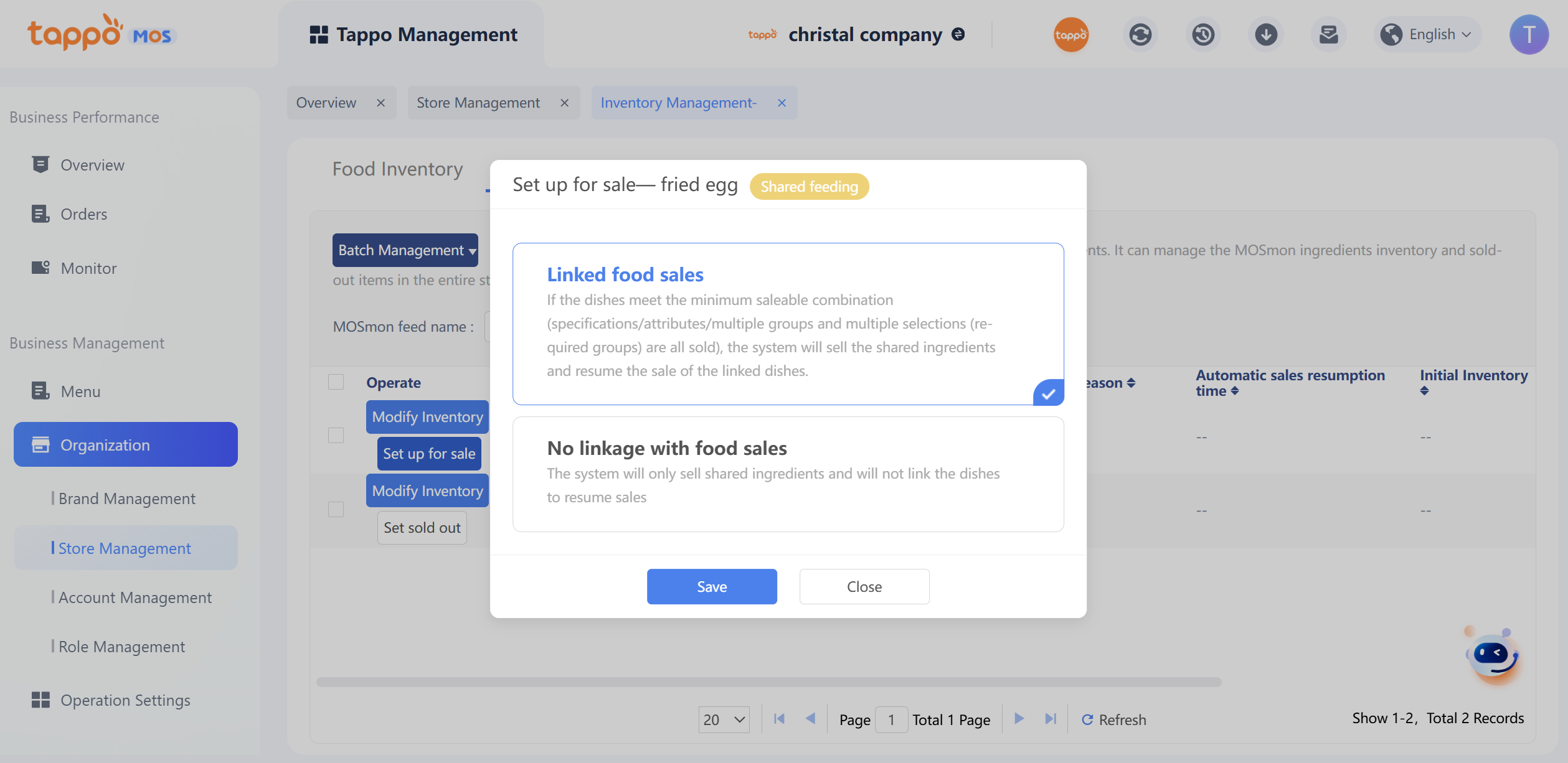
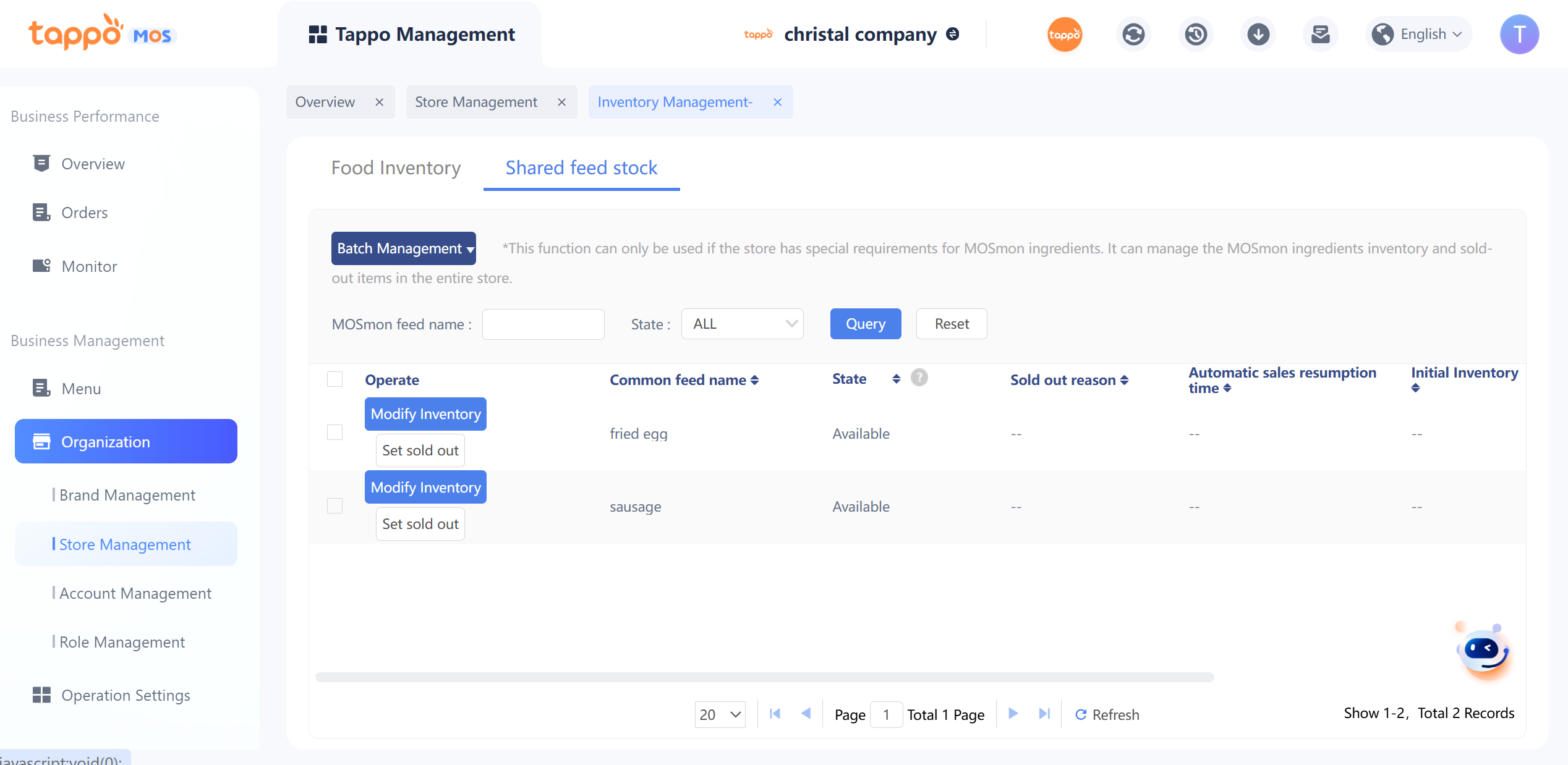
Click Store [Inventory Management] – [Shared feed stock] in the store list to open the shared topping inventory management page. Inventory management includes shared topping inventory settings and out-of-stock settings. It also supports batch setting of shared toppings to be out of stock/available for sale and synchronization to third parties. The list displays the store’s shared topping information by default. The store can operate on shared toppings that need to set inventory or be out of stock.
1. Modify Shared Topping Inventory
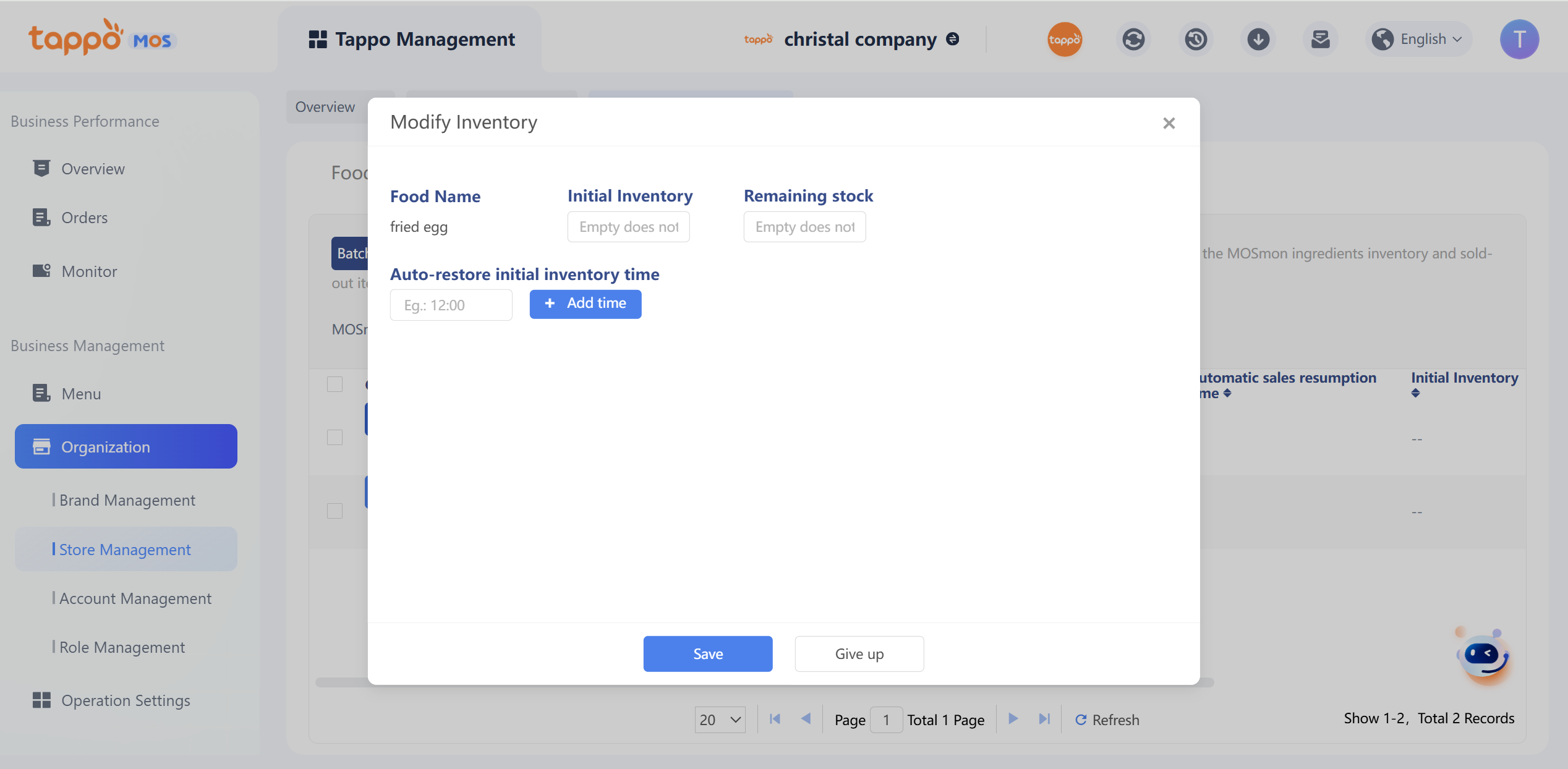
a. Find the shared topping and click [Modify Inventory].
b. Set the initial inventory and remaining inventory of the shared topping.
Tappo Management Inventory screenshot 13 in Tappo

c. Click Save to take effect. Note: Once saved, all special requirements of single dishes referencing this shared topping will be uniformly modified. Once the shared topping inventory is reduced to 0, it will be automatically out of stock.
2. Set Shared Topping Out of Stock
a. Find the shared topping and click [Set Out of Stock].
b. Select the out-of-stock reason and automatic restoration time for sale.
Tappo Management Inventory screenshot 14 in Tappo
c. Click Save to take effect immediately. All special requirements of single dishes referencing this shared topping will be uniformly modified.
3. Set Shared Topping Available for Sale
a. Select the out-of-stock shared topping and click [Set Available for Sale], a confirmation pop-up window will appear.
Tappo Management Inventory screenshot 15 in Tappo
b. Click Save to take effect immediately. All special requirements of single dishes referencing this shared topping will be uniformly modified.

Update Store Inventory

Operation Process Description:
On the store management page:
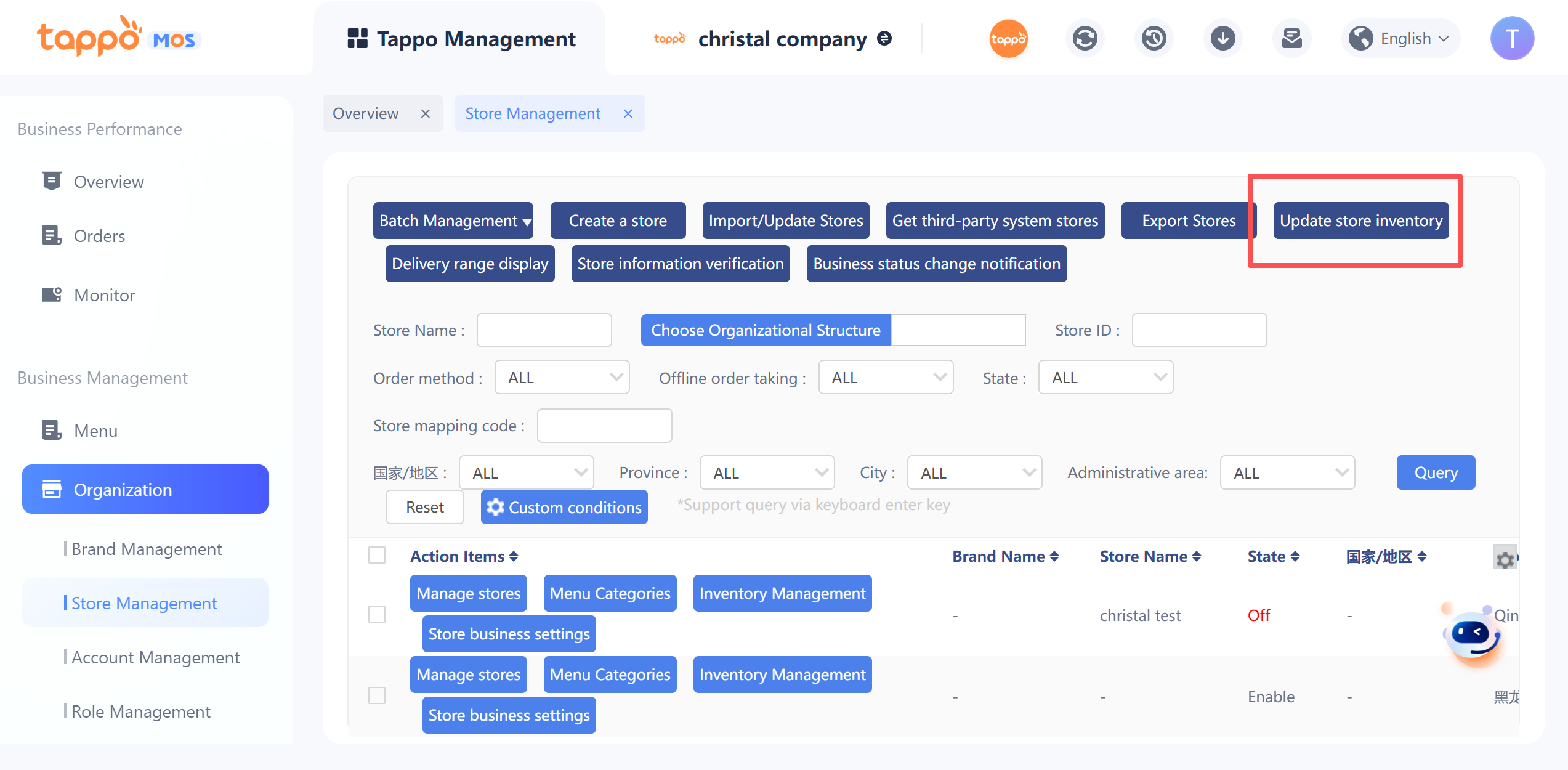
1. Click [Update Store Inventory]
Tappo Management Inventory screenshot 16 in Tappo
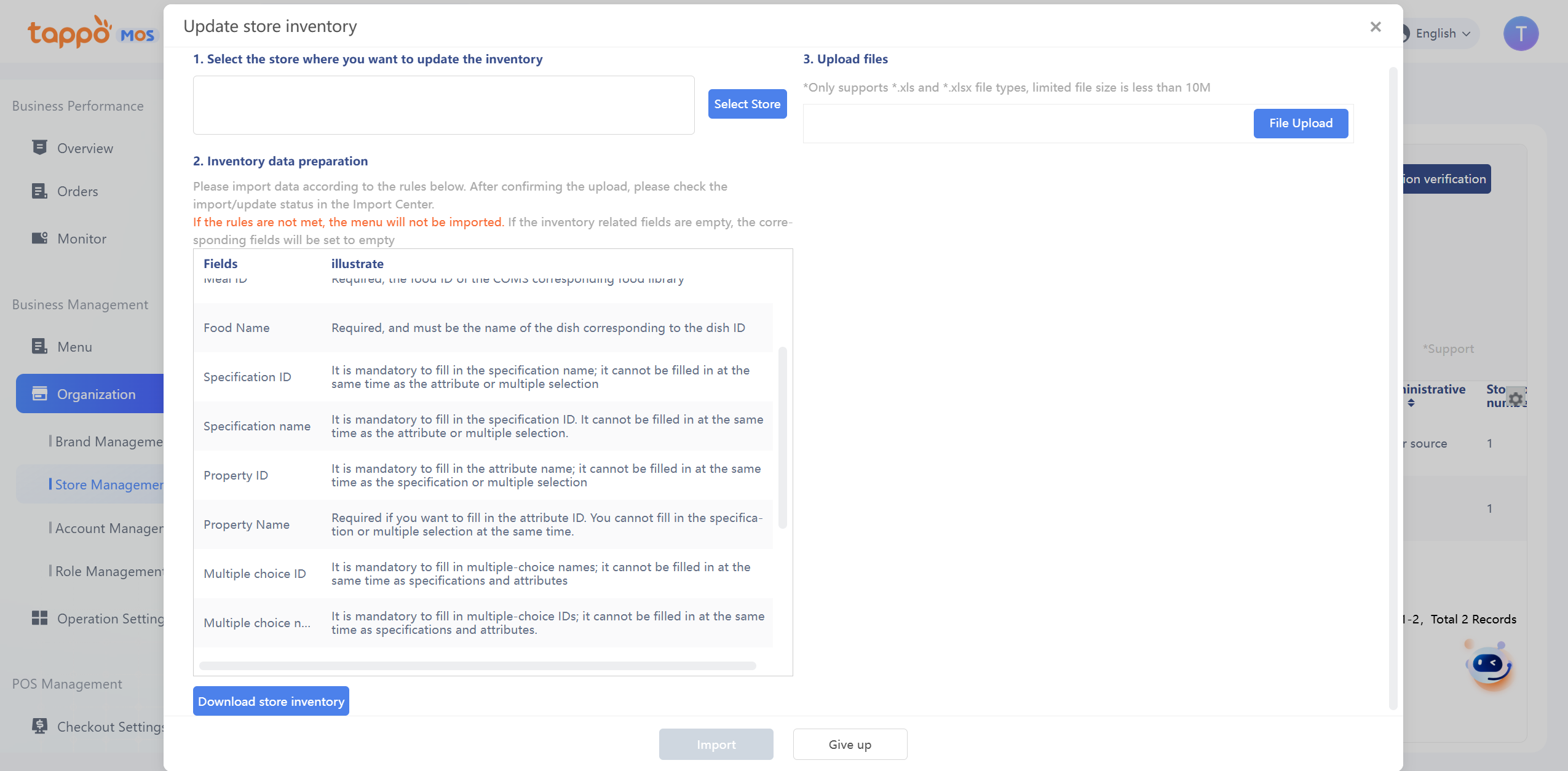
2. Enter the update store inventory function page.
Tappo Management Inventory screenshot 17 in Tappo
a. Click [Select Stores] to select the stores for which dish inventory needs to be updated (supports cross-brand different stores).
b. After selecting the stores, click [Download Store Inventory] to export all dish inventory of the corresponding stores in Excel format and send it to the specified email.
c. Modify the dish inventory information locally according to the field description, re-upload the modified inventory Excel file, click Next to complete the import verification, modify as required, and complete the update store inventory operation.
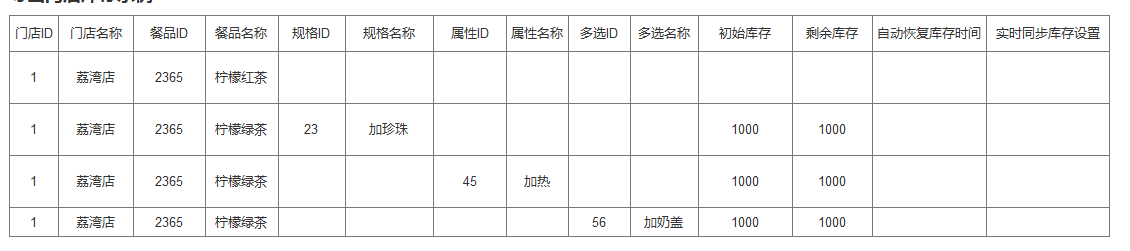
d. Note: Currently, importing inventory supports the inventory of dish special requirements. If a dish has multiple special requirements and needs to support function inventory, the inventory of the dish and each special requirement needs to be entered row by row, as shown in the example below:
Tappo Management Inventory screenshot 18 in Tappo

Set Store Busy by Channel

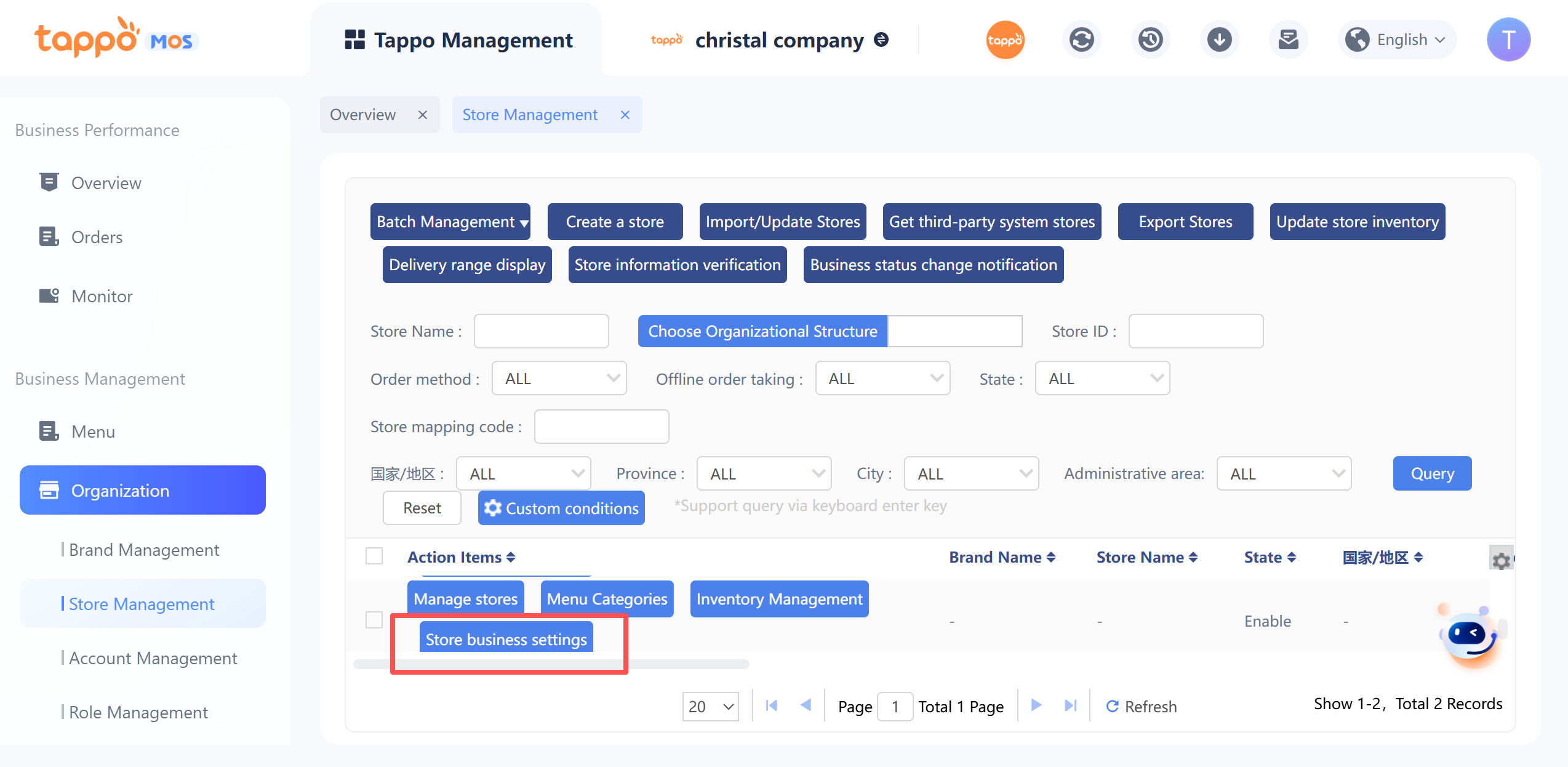
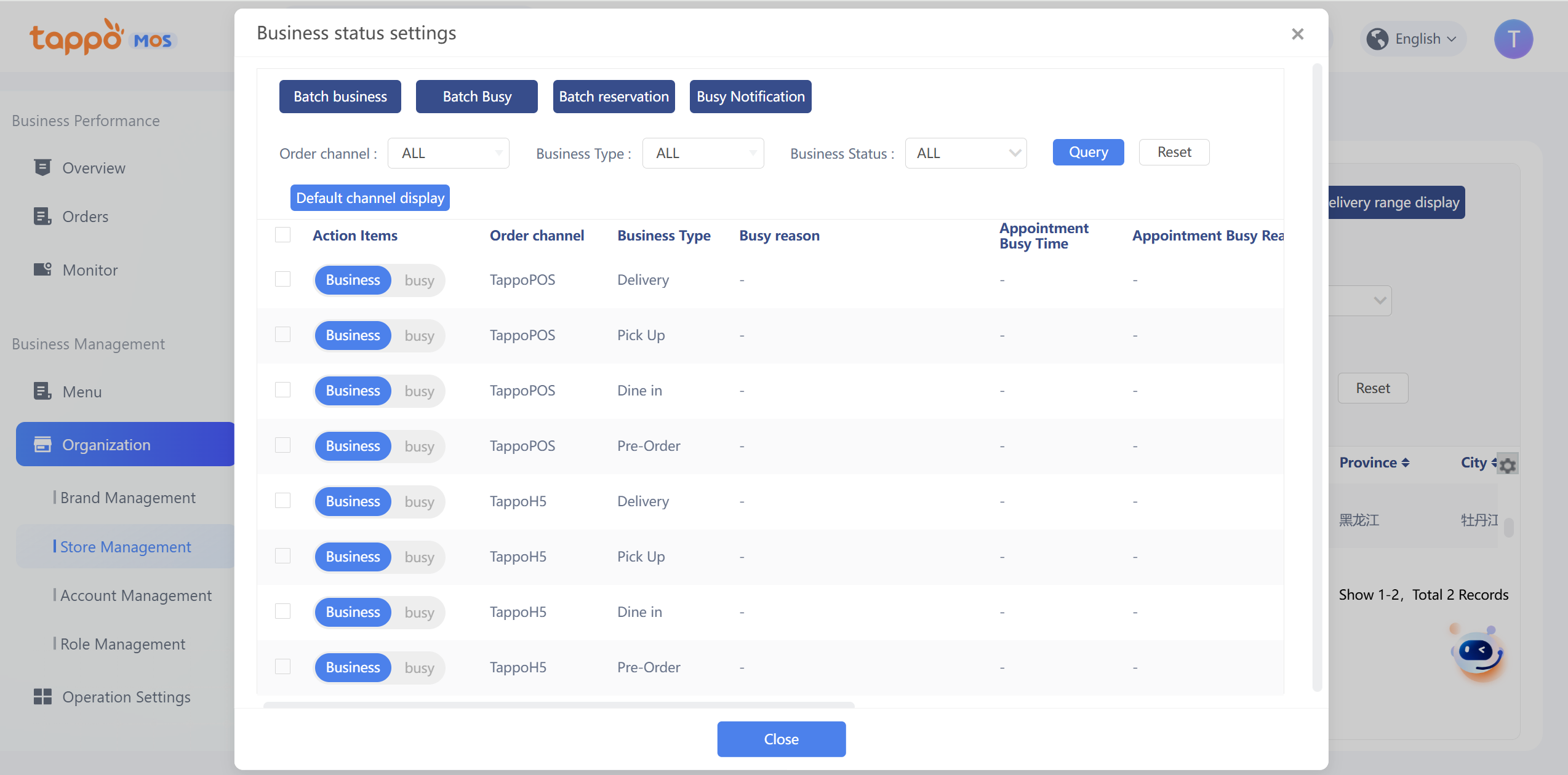
In Store List – Store Business Settings, you can set the order placement channel or business type to be busy, and set the automatic restoration of business time.
Tappo Management Inventory screenshot 19 in Tappo Tappo Management Inventory screenshot 20 in Tappo
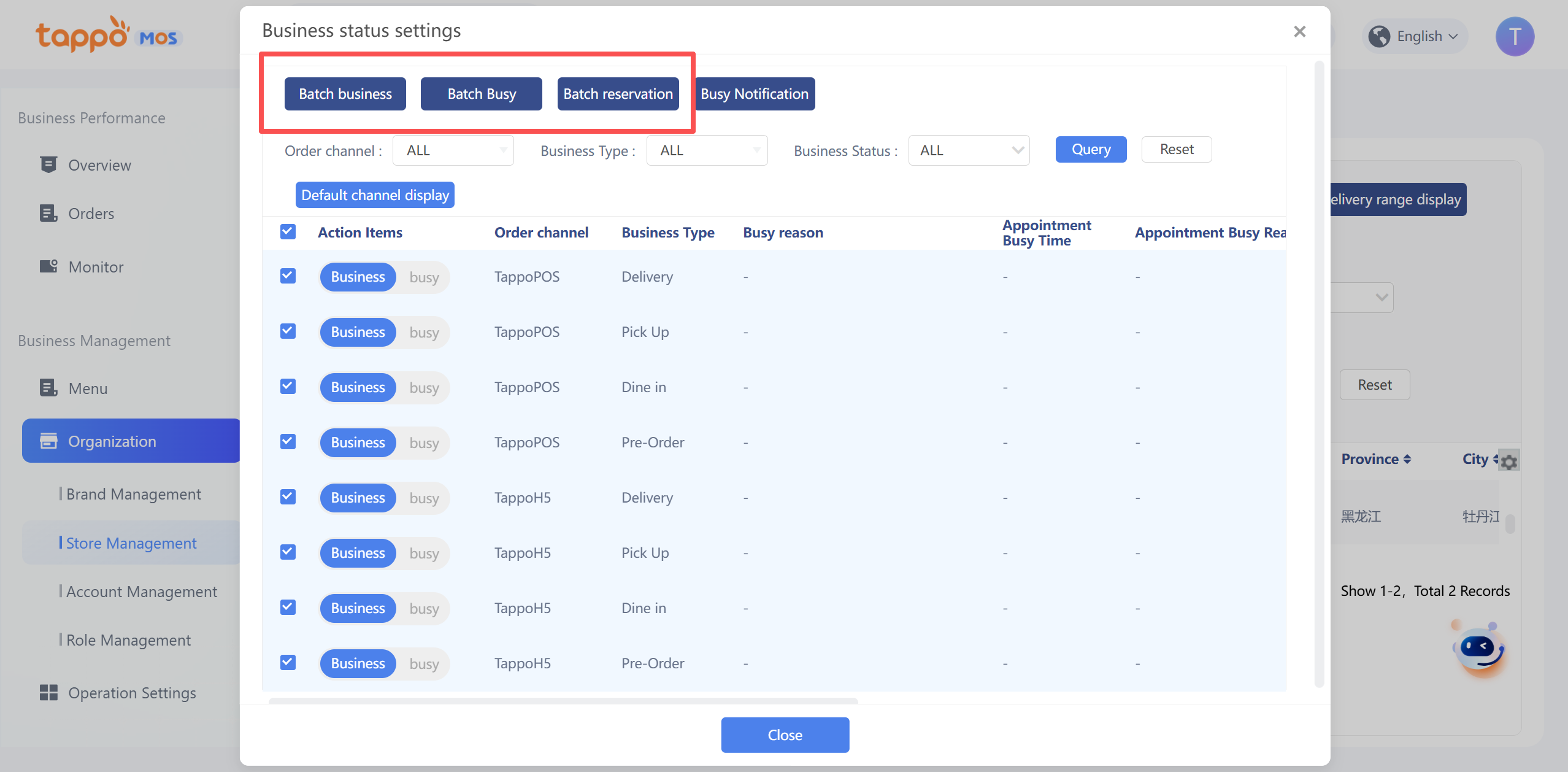
In the store list, select multiple stores to batch set the store’s business status: For food delivery platforms, you must select the platform name and takeaway type to synchronize the entire store’s busy status to the food delivery platform. If only the takeaway pickup business of the channel is supported, you also need to select the takeaway business type to set.
Tappo Management Inventory screenshot 21 in Tappo
Select multiple stores to batch delete and delete the store organization. If there are already accounts in the corresponding store organization, a prompt will appear.

Import/Update Stores

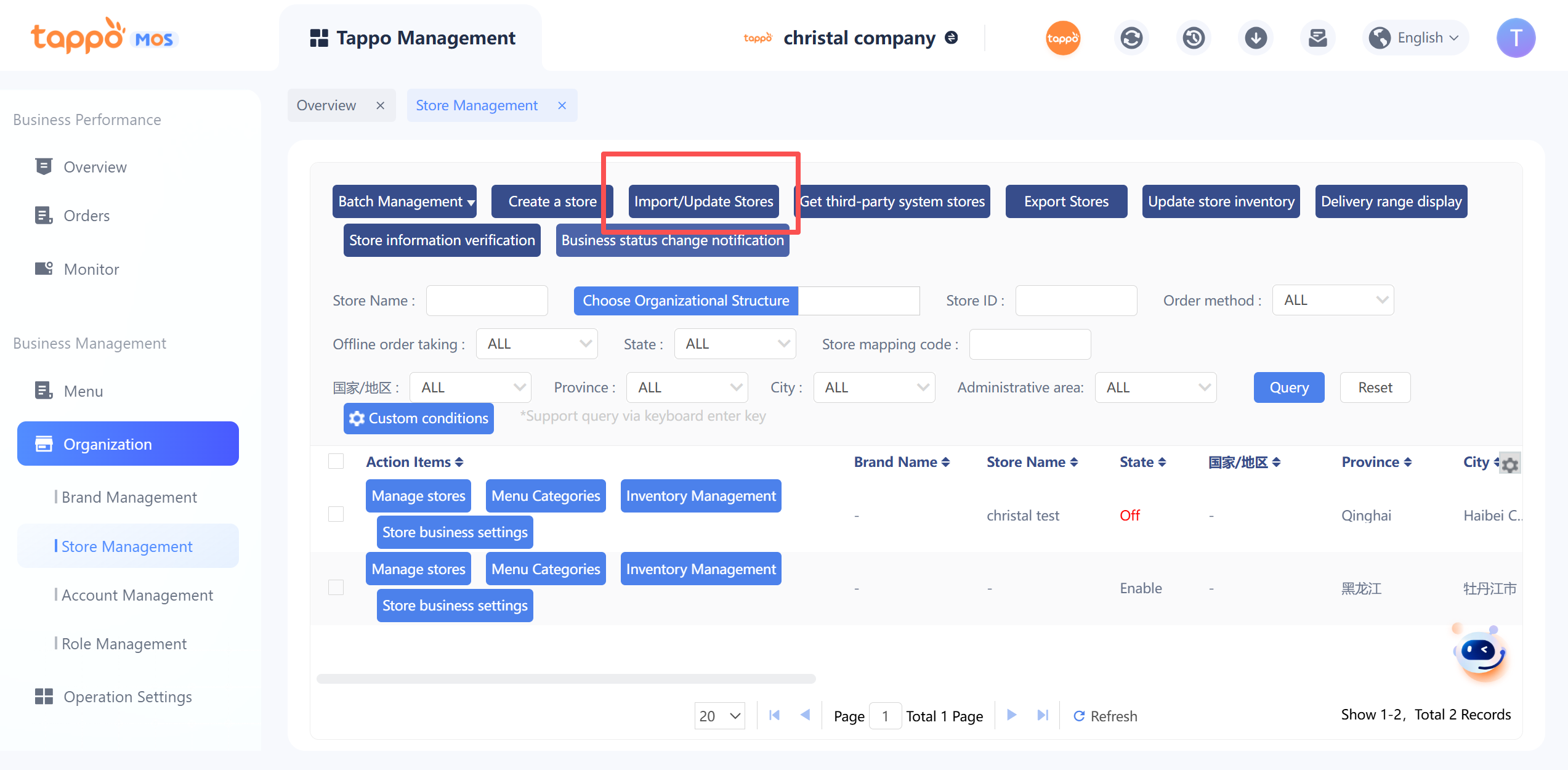
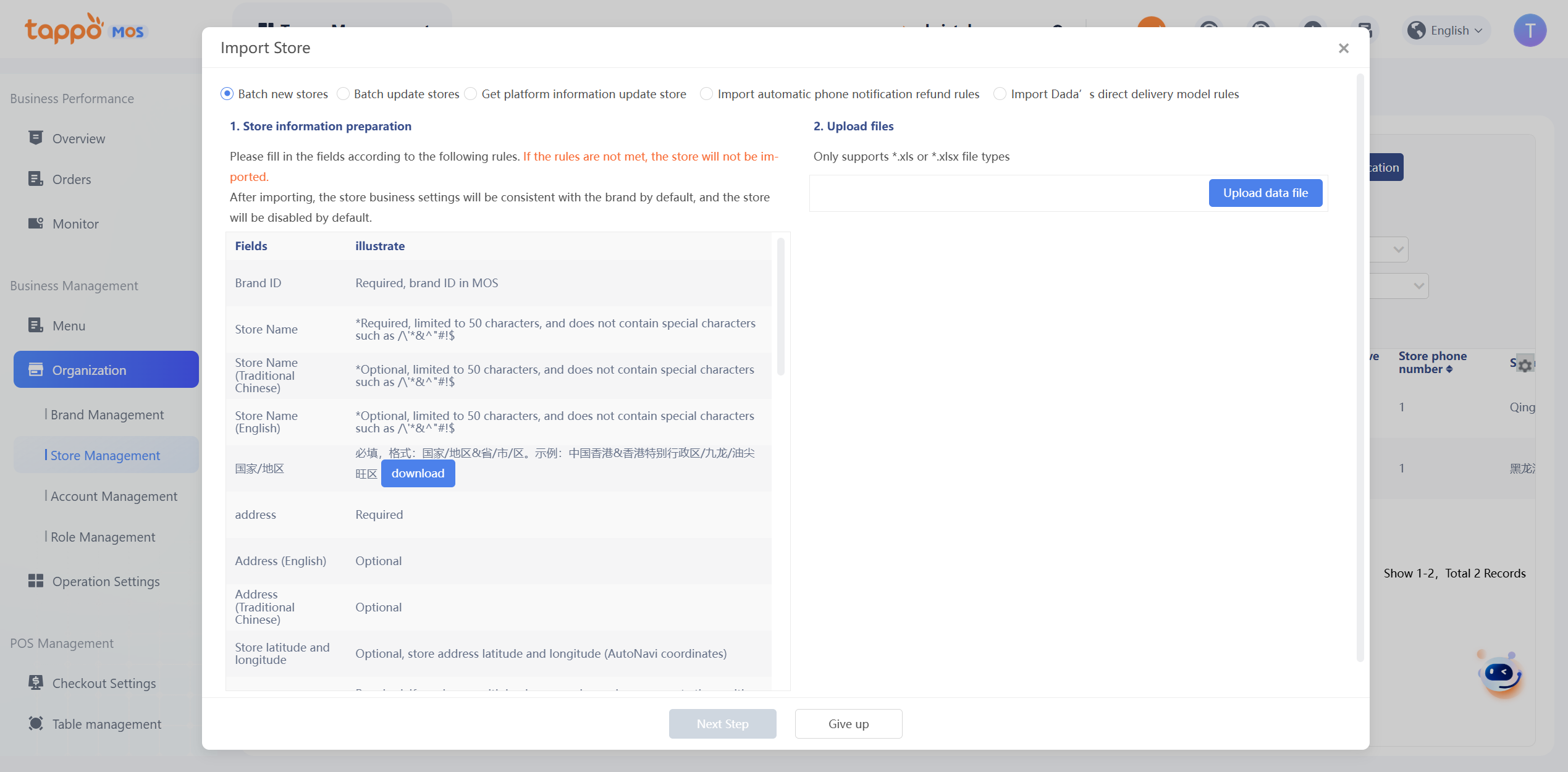
Import/update store operations can be performed in the store list. Batch addition/update of stores is carried out by verifying the corresponding fields according to the uploaded Excel.
Tappo Management Inventory screenshot 22 in TappoTappo Management Inventory screenshot 23 in Tappo
1. Click Import/Update Stores to pop up the import store window. Select the import type: Batch New/Batch Update Stores. You can download the import template to enter the stores to be imported.
2. Upload the Excel file of the stores to be imported and proceed to the next step to preview the import results.
3. The preview list will filter out stores that cannot be imported.
4. Click Import to complete the operation.

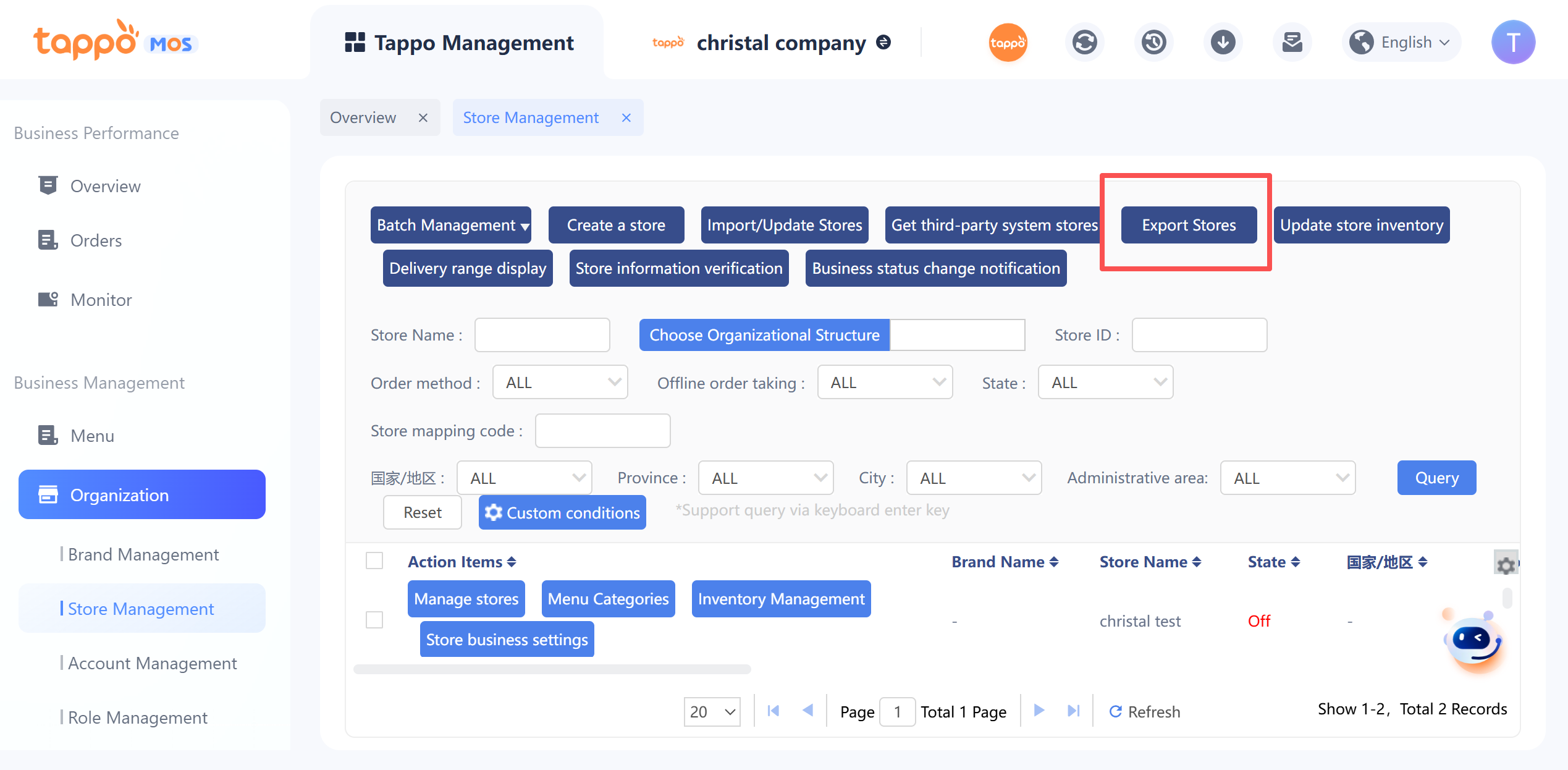
Export Stores

Information of selected multiple stores can be exported in the store list.
Tappo Management Inventory screenshot 24 in Tappo 
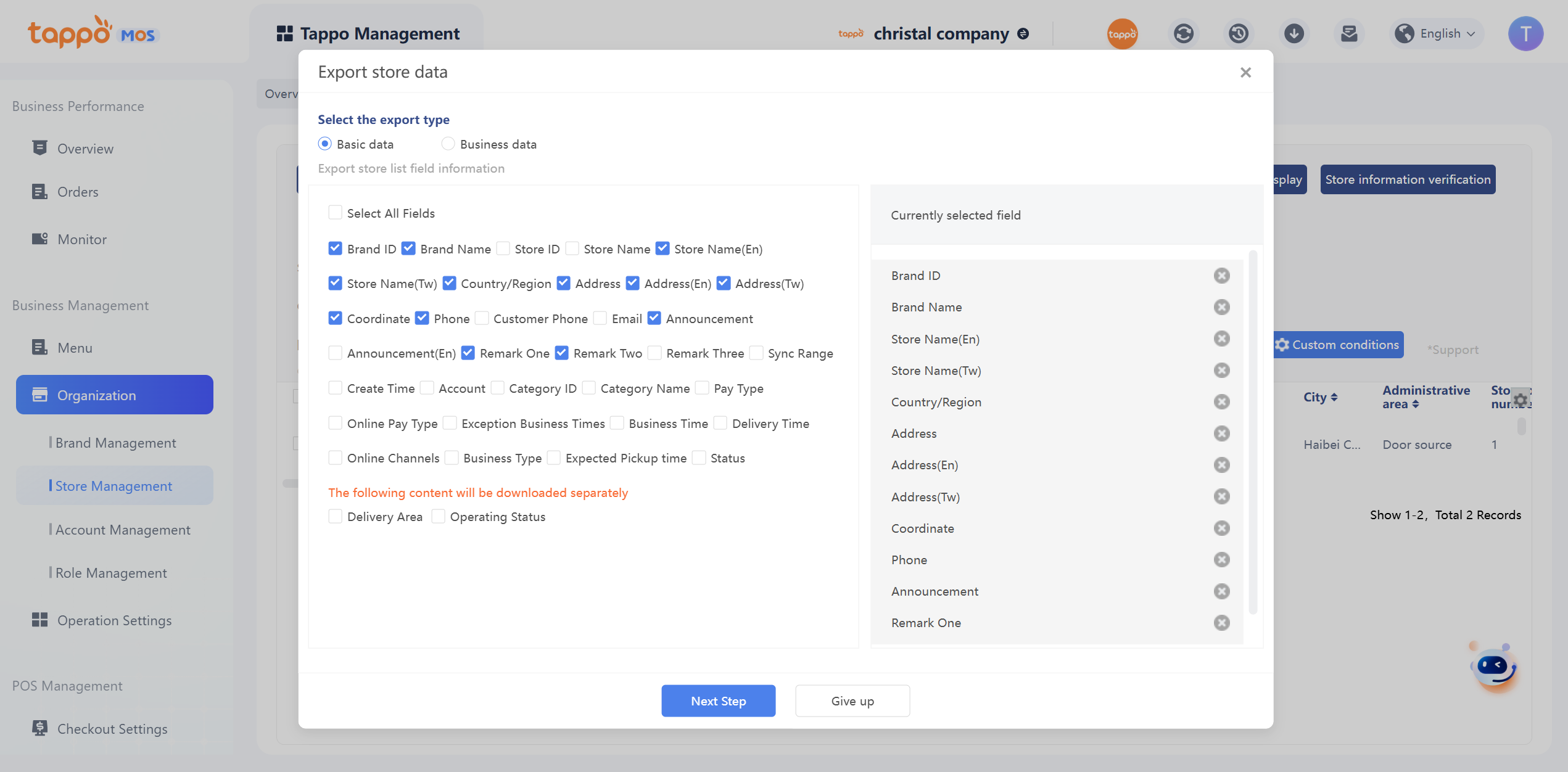
1. Click Export Stores to select the fields of the store information to be exported.
Tappo Management Inventory screenshot 25 in Tappo
1. The selected fields are displayed on the right, and the order of the exported list information can be edited by dragging. Fields placed higher will be displayed first in the table.
2. After clicking Next, you need to enter the email to receive the exported store information. Multiple emails can be filled in, separated by commas (,).

    Create your account